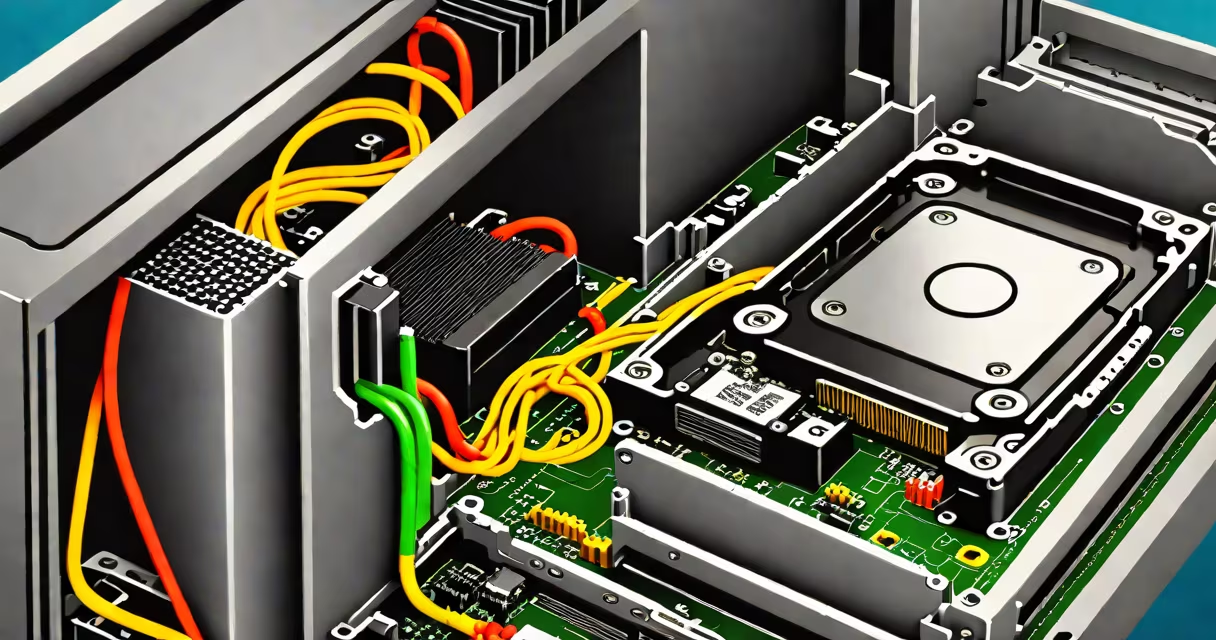
Upgrading PC storage replaces or adds internal drives to increase capacity, improve speed, or both. This involves installing a solid-state drive (SSD) or larger hard disk drive (HDD) into a desktop or laptop system.
Most users start with a small SSD or HDD that fills over time. Upgrading storage means replacing the old drive or adding a new one. The goal is faster boot times, quicker application launches, and more room for files. For example, upgrading from a 256GB SSD to a 1TB NVMe SSD cuts game load times from 45 seconds to under 10 seconds.
Storage upgrades differ from RAM or GPU changes. They don't boost processing power but directly affect how fast your computer accesses data. A slow HDD can bottleneck even a high-end CPU. Replacing it with an SSD often makes the biggest difference in perceived performance.
PC storage holds everything: the operating system, apps, documents, photos, videos. When you open a file, the CPU sends a request to the storage device. The device retrieves the data and sends it back. The faster the device responds, the quicker the file opens.
Traditional HDDs spin at 5,400 to 7,200 RPM. They read data sequentially from spinning platters. An average HDD takes 8-12 milliseconds to locate data. SSDs use flash memory chips with no moving parts. They access data in under 0.1 milliseconds. This difference explains why a 1TB SSD boots Windows 11 in 8 seconds compared to 30 seconds on a 7,200 RPM HDD.
Modern systems support multiple storage types. SATA SSDs connect via a standard cable and run at ~550 MB/s. NVMe SSDs plug into M.2 slots on the motherboard and reach speeds up to 7,000 MB/s. A single PCIe 4.0 x4 NVMe drive can transfer a 4GB video file in under 3 seconds.
There are two main types: HDDs and SSDs. Each has subtypes based on interface and form factor.
| Type | Interface | Typical Speed | Best For |
|---|---|---|---|
| HDD (2.5") | SATA III | 50-180 MB/s | Backup, media libraries, low-cost bulk storage |
| HDD (3.5") | SATA III | 50-180 MB/s | Desktops, servers, long-term archives |
| SSD (SATA) | SATA III | 500-550 MB/s | General use, budget upgrades, older systems |
| SSD (NVMe M.2) | M.2 PCIe 3.0/4.0 | 2,000-7,000 MB/s | High-performance tasks, gaming, video editing |
For most users, an NVMe SSD is the best choice. It fits in a small M.2 slot and delivers dramatic speed gains. A 1TB Samsung 980 Pro NVMe SSD costs around $100 and handles 7,000 MB/s sequential reads. It reduces Photoshop startup time from 12 seconds to 2.5 seconds.
Some laptops lack M.2 slots. In those cases, a SATA SSD or external drive may be the only option. Always verify compatibility. Check your motherboard manual or use tools like Important's System Scanner to confirm supported drives.
Users upgrade storage for three main reasons: running out of space, needing faster performance, or replacing a failing drive.
When a drive hits 90% capacity, system slowdowns occur. Windows may stop saving files. Applications freeze. A 1TB drive can store 250,000 photos or 1,000 hours of HD video. Once full, users must delete files or add storage.
Performance matters most for creators and gamers. A 4K video editor working on a 1TB HDD spends 15 minutes rendering a 1-minute clip. Switching to a 1TB NVMe SSD reduces that to 3 minutes. The same applies to games: Call of Duty: Modern Warfare 3 loads in 18 seconds on an SSD versus 42 seconds on an HDD.
Drive failure is another trigger. HDDs have mechanical parts that wear out. According to Backblaze, the annual failure rate for HDDs exceeds 2% after three years. SSDs fail less often but can still degrade. Upgrading proactively prevents data loss.
Many assume that upgrading storage requires reinstalling the OS. That's false. You can clone the existing drive to a new one using software like Macrium Reflect or EaseUS Todo Backup. Cloning copies every file, partition, and boot record exactly.
Another mistake is mixing up storage types. People often buy an M.2 NVMe SSD for a desktop with no M.2 slot. Or they buy a SATA SSD for a laptop that only supports M.2. Always verify physical and electrical compatibility.
A lesser-known fact: SSDs don't need defragmentation. Unlike HDDs, which benefit from reorganizing fragmented data, SSDs handle random access efficiently. Defragging an SSD wastes write cycles and shortens lifespan. Windows 10 and 11 disable defrag for SSDs automatically.
I replaced the 1TB HDD in my gaming PC with a 2TB NVMe SSD. The original setup had Windows 11, Steam, and 30 games. The HDD took 45 seconds to boot. Game load times averaged 25 seconds.
First, I backed up data using Macrium Reflect. I connected the new SSD via USB-to-M.2 adapter and cloned the entire drive. After confirming the backup, I powered down the PC, removed the old HDD, and inserted the new SSD into the M.2 slot.
Booting from the new drive, Windows loaded in 9 seconds. I launched Cyberpunk 2077. The first level loaded in 12 seconds-down from 38. Total installation time dropped from 1 hour 20 minutes to 45 minutes. The system felt responsive even during intense scenes.
After the upgrade, I moved large media files to a secondary 4TB HDD. This freed up space and kept the primary drive fast for active work. The entire process took under 90 minutes.
For systems with limited space or no M.2 slot, consider a 2.5" SATA SSD. They fit in most laptops and desktops. For maximum speed, prioritize NVMe drives if your motherboard supports them.
Always back up critical data before starting. Even a well-planned upgrade can fail due to loose cables or incompatible hardware. If you're unsure about the process, consult your motherboard's manual or seek help from a technician.
Upgrading PC storage is one of the most effective ways to extend a system's life. It's faster than buying a new machine and gives immediate results. gamer, better storage means better performance.