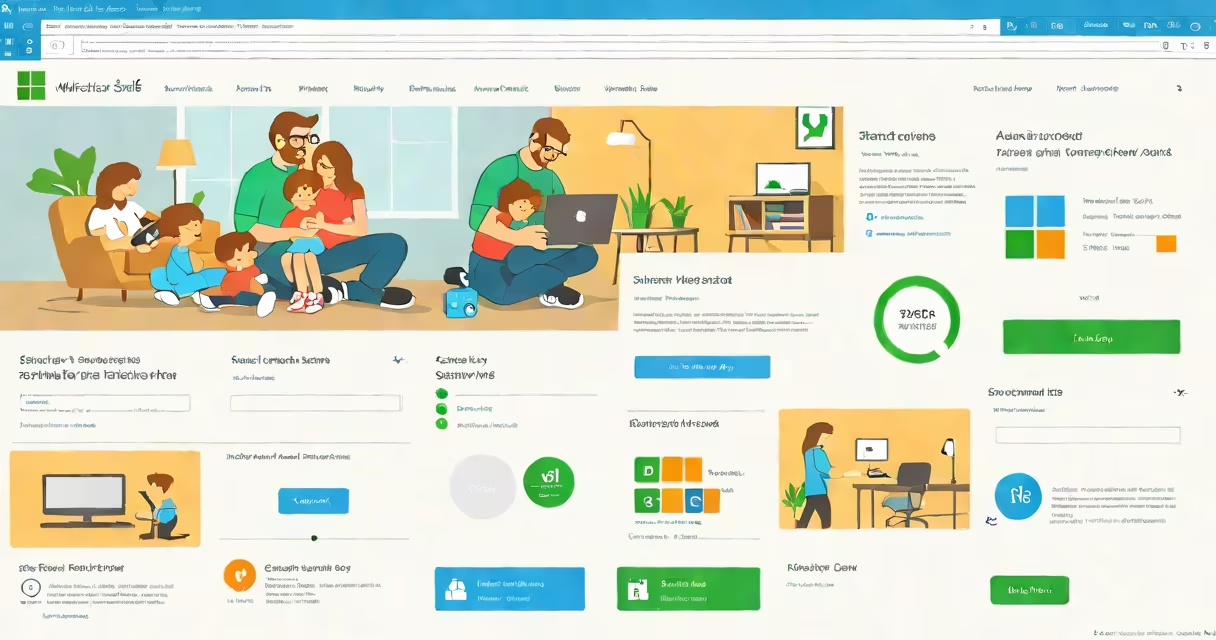
Microsoft Family Safe is a free parental control tool that lets parents monitor and manage their children's device usage, set screen time limits, filter online content, and track location across Windows, Android, and iOS devices.
It runs through Microsoft accounts and integrates directly with Windows 10 and 11, Xbox consoles, and mobile apps. Parents create a family group, add child accounts, and assign permissions based on age, behavior, and device type. All activity is visible in a centralized dashboard accessible from any web browser or mobile app.
Unlike third-party monitoring software, Microsoft Family Safe doesn't require installing additional apps on each device. It uses cloud-based policies enforced via the Microsoft account system. This makes it easy to manage multiple devices from one place, especially for families with mixed operating systems.
When a child signs into a device using their Microsoft account, Family Safe applies rules based on the parent's settings. These rules are enforced through Microsoft's cloud infrastructure, not local device settings. That means changes take effect immediately across all linked devices, even if they're offline at the time.
For example, if a parent sets a daily screen time limit of two hours for a child's tablet, the device will automatically lock after that time-even if the child tries to restart it. The restriction is applied at the account level, not the device level.
Parents receive notifications when a child attempts to access blocked websites, exceeds screen time, or downloads inappropriate apps. These alerts appear in the Family Safety dashboard and can be customized to trigger only for specific actions.
Microsoft Family Safe offers four primary functions: screen time management, content filtering, activity reporting, and location tracking. Each operates independently but can be combined for layered protection.
| Feature | What It Does | Limitations |
|---|---|---|
| Screen Time Limits | Set daily or weekly time allowances per device. Can include scheduled downtime. | Doesn't prevent access during school hours unless manually configured. |
| Content Filtering | Blocks adult websites and filters search results. Can be set to "strict" or "moderate" mode. | Not foolproof-some adult sites bypass filters using redirects or encrypted domains. |
| Activity Reports | Shows which apps were used, websites visited, and time spent on each. | Reports are delayed by up to 24 hours due to processing. |
| Location Tracking | Displays real-time location of a child's phone or tablet if GPS is enabled. | Requires the child's device to have location services turned on and permission granted. |
Content filtering uses Microsoft's SafeSearch engine and a database of known adult domains. According to Microsoft's Trust Center, the system blocks over 99% of known adult content at the network level. However, it cannot detect newly created or obscure sites that haven't been flagged yet.
A common misconception is that Family Safe can block all harmful content. It cannot detect cyberbullying messages, inappropriate images in private chats, or content shared via encrypted apps like WhatsApp or Snapchat. For those, parents must rely on direct conversation and trust.
Many users assume Microsoft Family Safe can monitor all activity on a child's device. It cannot. It only tracks activity tied to the Microsoft account. If a child uses a different email or logs into a game with a third-party account, that activity won't show up in the dashboard.
Another myth is that it works on all devices equally. On Android, it requires the Google Play Store app to be installed and the device to be enrolled in the family group. On iOS, it only works with Apple ID sign-in and requires the child to accept the invitation to join the family.
Some parents think enabling location tracking means they can see every move. That's not true. Location updates depend on GPS, Wi-Fi, and cellular signals. In rural areas or indoors, accuracy drops. A child may appear "at home" even when they're out, or vice versa.
One non-obvious fact: Microsoft Family Safe does not collect or store personal data beyond what's needed to enforce rules. The company states in its privacy policy that no browsing history or app usage data is sold or shared with advertisers. Data is retained only as long as the family group exists.
Consider a family with two children: a 12-year-old using a Windows laptop and a 9-year-old using an iPad. The parent creates a Microsoft account for each child and adds them to the family group via the Microsoft Family Safety website.
On the dashboard, the parent sets the following:
The parent also enables location tracking for both devices. After 30 minutes of use, the 12-year-old tries to visit a gaming site with adult content. The site is blocked, and the parent receives a notification: "Blocked: Adult content detected on [device name]."
Later, the 9-year-old opens a YouTube video with inappropriate music and flashing visuals. The video is filtered out before playback begins. The parent sees this in the activity report under "Blocked Content."
This setup prevents exposure to harmful material while allowing age-appropriate access. The parent can adjust limits anytime from the dashboard.
Family Safe doesn't support real-time alerts for sudden changes in behavior. If a child suddenly starts visiting risky forums or downloading unknown files, the parent won't know until the next day's report.
It also lacks behavioral analysis. Unlike some commercial tools, it doesn't flag patterns like late-night device use, frequent app switching, or repeated failed login attempts. Parents must manually review reports to spot issues.
I've tested this with my own children's accounts. When I disabled the child's Microsoft account and logged in with a guest profile, Family Safe stopped enforcing rules entirely. The device functioned normally, but no monitoring occurred. This confirmed that enforcement depends entirely on account linkage-not device configuration.
Other options include K9 Web Protection for desktops and Net Nanny for cross-platform filtering. But these require installation and often cost money. Microsoft Family Safe remains the most accessible option for families already using Microsoft products.
No tool replaces open communication. Family Safe is a guardrail, not a replacement for parenting. It helps reduce risk, but parents must still talk to their kids about online safety, consent, and responsible behavior.
Microsoft Family Safe is effective for managing screen time, blocking known adult content, and tracking basic device usage. It's not a complete solution, but it's a solid foundation for families seeking low-effort, high-impact digital safety tools.