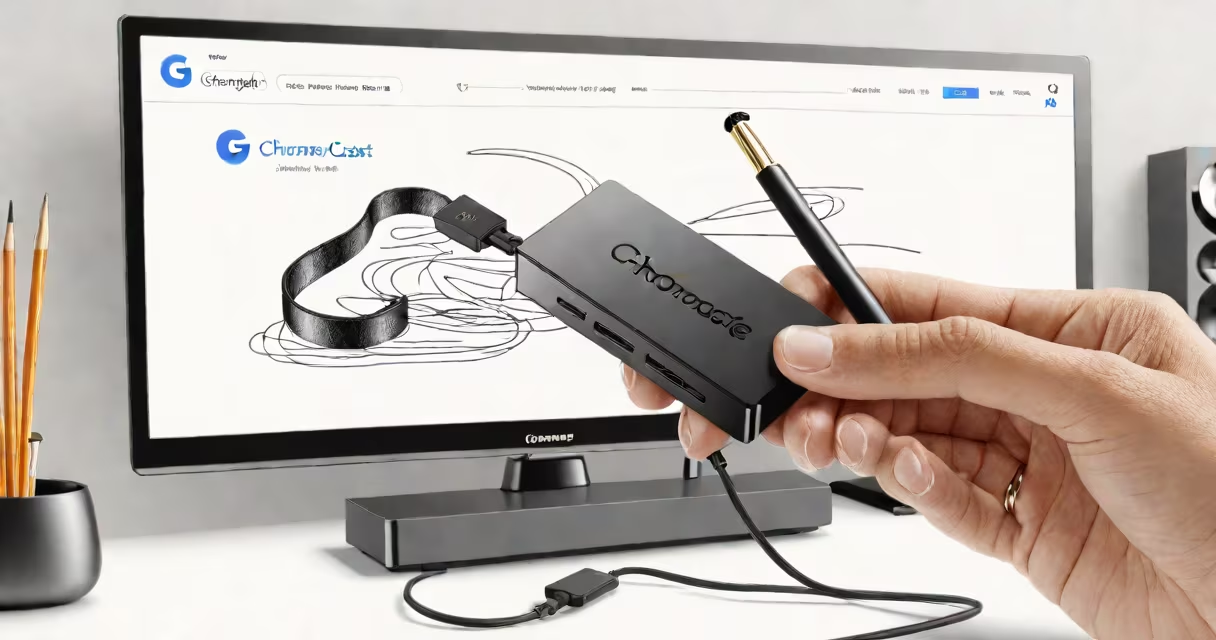
Google Chromecast is a small streaming device that plugs into your TV's HDMI port and lets you wirelessly stream video, music, and photos from your phone, tablet, or computer. It turns any HDMI-equipped TV into a smart TV with access to YouTube, Netflix, Hulu, and other services.
Chromecast uses your home Wi-Fi network to send content from your device to the TV. You don't need a special app to start-most supported apps have a "Cast" button. Once connected, you control playback from your mobile device or computer.
The device supports 1080p HD video and stereo audio. It requires a 5 GHz or 2.4 GHz Wi-Fi network with at least 10 Mbps download speed. It does not support 6 GHz Wi-Fi bands used in newer routers.
When you plug Chromecast into your TV's HDMI port, it powers on automatically and connects to your Wi-Fi network. A blue LED light indicates it's active. After connecting, the device appears as a playback option in supported apps.
To stream content, open an app like YouTube or Netflix, tap the Cast icon (a rectangle with a Wi-Fi symbol), and select your Chromecast from the list. The video plays on the TV while your device remains free for other tasks.
Chromecast doesn't mirror your entire screen unless you're using a supported feature like "Screen Mirroring" in Android or "AirPlay" on iOS. For most users, casting specific content is faster and more stable than mirroring.
You'll need:
Chromecast is sold in multiple versions. The latest model, Chromecast with Google TV, includes a dedicated remote and a home screen with app shortcuts. Older models, like the Chromecast (3rd generation), require a smartphone or tablet to set up.
For older models, the setup process begins in the Google Home app. Open the app, tap the "+" icon, select "Set up device," then follow the prompts. The app detects the Chromecast, guides you through Wi-Fi selection, and assigns a name like "Living Room TV."
1. Plug the Chromecast into an HDMI port on your TV. Use the included USB cable and power adapter for consistent performance. Avoid using a USB port on the TV unless it provides sufficient power.
2. Turn on the TV and switch the input source to the correct HDMI channel. The Chromecast logo should appear on screen.
3. On your phone or tablet, open the Google Home app. Tap the "+" icon, then "Set up device." Select "Chromecast" from the list.
4. Wait for the app to detect the device. Tap "Next" when prompted.
5. Choose your Wi-Fi network. Enter the password. The Chromecast connects and displays a confirmation message.
6. Name your device (e.g., "Bedroom TV") and choose whether to enable guest mode. Tap "Finish."
7. Test the setup by opening YouTube, tapping the Cast icon, and selecting your device. Play a video to confirm audio and video sync.
After setup, you can control playback from your device. You can also use voice commands via Google Assistant if your TV supports it.
Chromecast works with:
Popular apps that support casting include:
| App | Supported Features |
|---|---|
| YouTube | Full video casting, playback controls, subtitles |
| Netflix | HD and 4K streaming (requires Netflix subscription) |
| Spotify | Audio-only casting, playlist control |
| Disney+ | 4K HDR support, Dolby Atmos audio |
Not all apps support casting. For example, Amazon Prime Video does not allow casting to Chromecast unless you're using the Prime Video app on a Fire TV device.
Users often assume Chromecast mirrors their entire screen. This is incorrect. Only specific apps support screen mirroring. To mirror your screen on Android, go to Settings > Connected Devices > Screen Mirroring. On iOS, use AirPlay instead.
Another frequent error is connecting to the wrong Wi-Fi band. Chromecast only supports 2.4 GHz and 5 GHz. If your router broadcasts a 6 GHz signal (Wi-Fi 6E), the device won't connect. Disable 6 GHz in your router settings or use a dual-band extender.
If the device fails to appear in the Google Home app, try rebooting your router and waiting 30 seconds before retrying. Ensure your phone and Chromecast are on the same network. The device may take up to 2 minutes to appear after power-on.
I once had a Chromecast fail to connect during a family movie night. The issue was a weak Wi-Fi signal in the basement. Moving the router closer resolved it. Signal strength matters-place the Chromecast within 10 feet of your router for best results.
For better performance, use a wired Ethernet adapter (sold separately) to connect the Chromecast to your router via Ethernet. This reduces buffering and improves reliability.
Enable "Guest Mode" in the Google Home app to let visitors cast content without joining your Wi-Fi. This feature is useful at parties or gatherings.
If playback stutters, check your internet speed. Streaming 1080p video requires at least 5 Mbps. Use a speed test app to verify your connection. If speeds drop below 3 Mbps, consider upgrading your plan or reducing bandwidth-heavy devices on the network.
Resetting the device is simple: press and hold the physical button on the Chromecast for 10 seconds until the LED flashes rapidly. Release and wait for the device to restart. You'll need to repeat the setup process.
Chromecast encrypts data between your device and the TV. All communication happens over your secured Wi-Fi network. No personal data is stored on the device itself.
However, third-party apps may collect usage data. Review app permissions in your device settings. Always sign out of accounts when sharing devices.
According to Google's privacy policy, Chromecast does not record audio or video from your TV. It only relays content from your device. Data collected is limited to device usage analytics and crash reports.
Chromecast competes with Apple TV, Amazon Fire Stick, and Roku. Unlike Apple TV, Chromecast doesn't offer a dedicated remote or a full operating system. But it's cheaper-$35 for the standard model-and easier to set up.
For users who prefer a standalone media player, the Chromecast with Google TV offers a full interface with app icons, search, and recommendations. It's ideal for households that watch a lot of live TV or use multiple streaming services.
Chromecast is not designed for gaming. While you can cast games from Android or Chrome OS, latency makes it unsuitable for real-time action titles. Use a console or PC for gaming instead.
Setting up Google Chromecast on your TV takes under 10 minutes. It works with most major streaming services and integrates smoothly with Android, iOS, and web browsers. The device is affordable, easy to use, and widely supported.
Always verify your Wi-Fi signal strength and use the official power adapter. Avoid third-party cables that lack proper voltage regulation. These steps prevent intermittent disconnections and improve stability.
Once configured, you can enjoy movies, shows, music, and photos on your big screen with minimal effort. The process is straightforward, and most issues resolve quickly with basic troubleshooting.
Understanding how to set up Google Chromecast on TV ensures you get the most from your streaming setup. With the right tools and settings, you'll enjoy smooth playback and reliable performance.