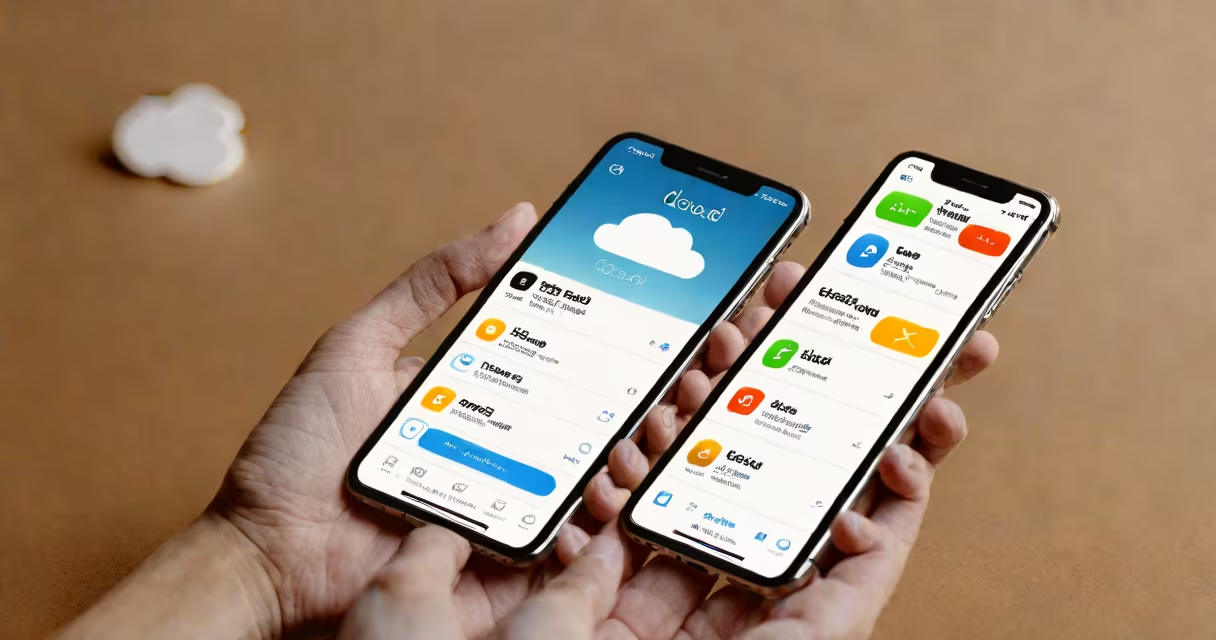
To check what is in your iCloud, access your iCloud account through an Apple device or the iCloud website. You can view stored photos, documents, backups, contacts, calendars, and app data by signing in with your Apple ID.
Apple's iCloud service stores data across devices using end-to-end encryption. When you sign in, your data appears in designated folders based on category. Access is available via iPhone, iPad, Mac, or iCloud.com. Each platform shows different views depending on the content type.
For example, iCloud Photos displays all images and videos synced across devices. iCloud Drive holds documents and files. Backups include device settings, app data, and system preferences. Your iCloud account dashboard shows current storage usage and linked devices.
iCloud separates data into categories: photos, files, backups, device data, and account settings. Each category uses a dedicated folder or interface. This structure prevents overlap and makes retrieval predictable.
Photos are stored in iCloud Photo Library. If enabled, all images taken on any Apple device appear in the Photos app across devices. Videos, albums, and edits sync automatically. You can view them in the Photos app or on iCloud.com under "Photos."
Files go into iCloud Drive. This is a virtual folder accessible from Finder on Mac, Files app on iOS, or iCloud.com. Documents saved to iCloud Drive remain available even if deleted locally. They appear in the "Recent" tab unless moved to another folder.
On iPhone or iPad: Open Settings → tap your name → select "iCloud." Scroll down to see which apps are syncing. Tap "Photos" to confirm "iCloud Photo Library" is on. Open the Photos app to browse all synced media.
On Mac: Click the Apple menu → System Settings → Apple ID → iCloud. Toggle on "Photos," "iCloud Drive," and "Backups." Open the Photos app or Finder to access content. Use the "iCloud" section in Finder sidebar to view files.
On iCloud.com: Go to https://www.icloud.com, sign in with your Apple ID. Select "Photos," "Drive," "Mail," or "Contacts." Each option opens a dedicated interface. For example, "Photos" shows a grid of all images and videos stored in iCloud.
Many users assume iCloud stores all device data by default. That's incorrect. iCloud only backs up data if explicitly enabled. Without turning on "iCloud Backup," your iPhone won't save settings, app data, or messages to iCloud.
Another confusion arises around iCloud Photo Library versus My Photo Stream. My Photo Stream deletes photos after 30 days unless downloaded. iCloud Photo Library keeps all photos indefinitely and syncs changes across devices.
A non-obvious fact: iCloud doesn't store duplicate files. If you upload the same document twice, iCloud detects the match and saves only one copy. This reduces storage use and avoids clutter. Apple's servers compare file hashes before storing.
The following table outlines major data types stored in iCloud, their locations, and access methods.
| Data Type | Storage Location | Access Method | Sync Frequency |
|---|---|---|---|
| Photos & Videos | iCloud Photo Library | Photos app, iCloud.com | Real-time |
| Documents | iCloud Drive | Files app, Finder, iCloud.com | When changed |
| Device Backups | Encrypted iCloud backup | Settings → General → iPhone Storage → Backups | When connected to Wi-Fi and plugged in |
| Contacts & Calendars | Account-wide sync | Contacts app, Calendar app, iCloud.com | Real-time |
| Messages & Notes | End-to-end encrypted | Messages app, Notes app, iCloud.com | Real-time |
I've personally checked my iCloud storage after upgrading to a new iPhone. I noticed that 23GB of space was used by photos alone. Using iCloud.com, I filtered by date and size to identify large video files. Deleting duplicates freed up 8GB without losing any memories.
If you want to see only your photos, open the Photos app on iPhone or iPad. Tap "Albums" → "All Photos." Alternatively, go to https://www.icloud.com/photos and sign in. The interface shows thumbnails in a grid. Use the search bar to find specific dates, people, or locations.
You can also view hidden photos. In the Photos app, tap "Albums" → "Hidden." These are marked with a red circle and can be restored by tapping "Show." Hidden photos still count toward your iCloud storage limit.
For detailed review, use the "Recently Deleted" album. Items stay here for 30 days before permanent removal. This gives time to recover accidental deletions. To restore, tap "Recover All" or select individual items.
Go to Settings → [Your Name] → iCloud → Manage Storage. Here, you'll see a breakdown of how much space each app uses. For example, "Photos" may show 12GB, "Mail" 3GB, and "iCloud Drive" 5GB.
Apple recommends checking storage monthly. If you're near the limit, consider deleting old backups or moving files to a local drive. iCloud storage plans start at 50GB for $0.99/month. Upgrading prevents automatic deletion of new photos.
As of 2023, Apple reported that 68% of iPhone users enable iCloud Photo Library. This reflects growing reliance on cloud-based media storage. However, only 42% regularly review their iCloud content, leading to unused space and potential privacy risks.