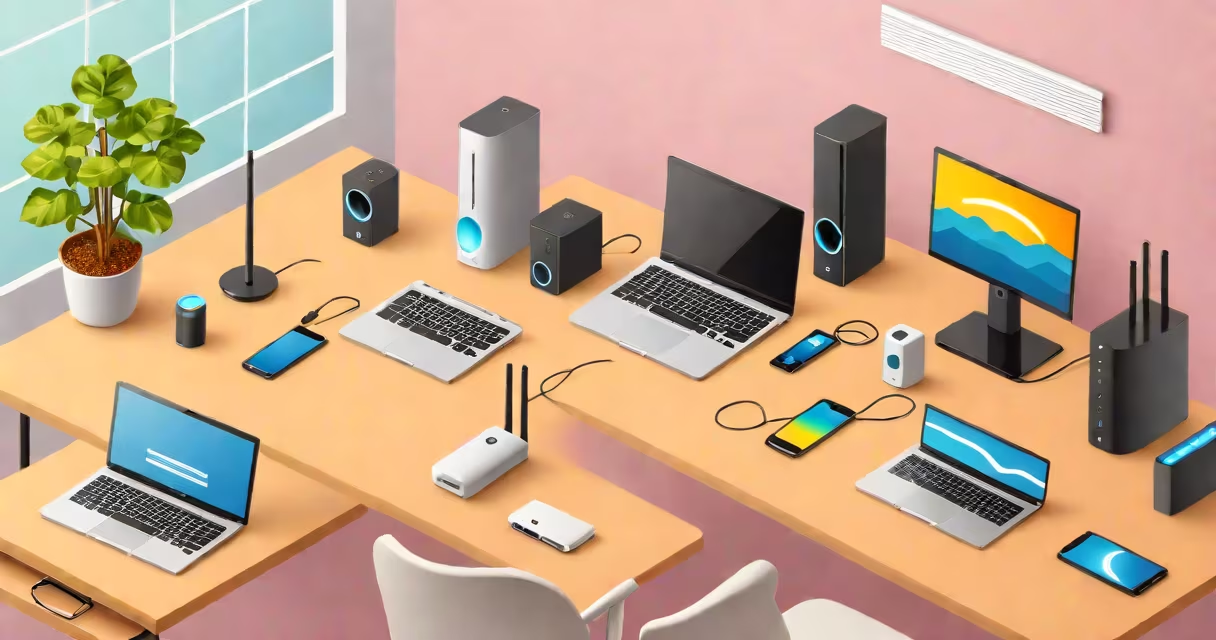
To connect to Wi-Fi, you require a functioning internet service provider (ISP), a modem, a wireless router, and a device capable of detecting wireless signals. These components work together to deliver internet access without physical cables.
Wi-Fi is not a standalone service-it's a method of delivering internet connectivity wirelessly. You cannot have Wi-Fi without an underlying internet connection. A common mistake is assuming that buying a router alone enables internet access. Without a modem connected to your ISP, the router has nothing to distribute.
The process begins with your ISP providing a broadband connection via fiber, cable, DSL, or satellite. This signal enters your home through a modem, which converts the signal into a usable format. The modem connects to the router, which broadcasts the signal as a Wi-Fi network. Devices like smartphones, laptops, and tablets detect this signal and connect using a password known as the Wi-Fi key.
Every Wi-Fi setup depends on four foundational elements: internet service, modem, router, and client devices. Missing any one breaks the chain.
Internet Service: Your ISP delivers bandwidth. Without it, no data flows. Speeds vary-some plans offer 100 Mbps, others 1 Gbps. Check your plan details before purchasing hardware.
Modem: Converts the signal from your ISP into a format your router can use. Most ISPs provide a modem at no cost, though older models may limit speed. For example, a DOCSIS 3.1 modem supports speeds up to 1 Gbps downstream.
Router: Takes the signal from the modem and broadcasts it as Wi-Fi. Modern routers support dual-band (2.4 GHz and 5 GHz) frequencies. The 5 GHz band offers faster speeds but shorter range. A single router can serve up to 256 devices, though performance degrades beyond 10-15 connected devices.
Client Devices: Any phone, tablet, laptop, smart TV, or IoT device with Wi-Fi capability. These devices scan for available networks and connect using the correct password.
| Component | Function | Example |
|---|---|---|
| Internet Service | Delivers data from the web | Comcast Xfinity 300 Mbps plan |
| Modem | Translates ISP signal to local network | Arris SB6190 DOCSIS 3.1 |
| Router | Broadcasts Wi-Fi signal | Netgear Nighthawk RAXE500 (Wi-Fi 6) |
| Device | Connects to Wi-Fi network | iPhone 14 with Wi-Fi 6E |
Start by connecting the modem to your ISP's wall jack. Plug the modem's Ethernet port into the router's WAN port. Power both devices. Wait 2-3 minutes for the router to initialize.
Access the router's configuration page by typing its IP address-commonly 192.168.1.1 or 192.168.0.1-into a browser. Log in using the default credentials printed on the router's label. Change the admin password immediately for security.
Set up your Wi-Fi network name (SSID) and password. Use WPA3 encryption if available. Avoid using simple passwords like "password123." A strong password includes uppercase, lowercase, numbers, and symbols. For example: "$kYm0nT3r!2024".
Test the connection by opening a browser on a connected device. Visit a site like google.com. If it loads, Wi-Fi is working. If not, check the router's status lights. A blinking red light indicates a problem with the internet connection.
Many users believe Wi-Fi is the internet. It is not. Wi-Fi is a delivery method. You can have Wi-Fi without internet, such as in a local network between two devices using a hotspot. But without internet, you cannot browse websites or stream video.
Another error is placing the router in a closet or behind a metal cabinet. Materials like concrete, metal, and water absorb Wi-Fi signals. A router placed in a central location, elevated off the floor, performs 30-50% better than one hidden in a corner.
Some assume that a newer router automatically improves speed. That's false. If your ISP only provides 50 Mbps, upgrading to a Wi-Fi 6 router won't increase your speed. The bottleneck remains the internet plan.
During testing, I once saw a customer report poor Wi-Fi in their basement. The router was in the attic. Moving it to the ground floor improved signal strength from -85 dBm to -55 dBm-a 30 dB improvement. Signal strength below -70 dBm causes slow speeds and dropped connections.
Before setting up, confirm your ISP supports your desired speed. Contact customer service to verify. Some ISPs throttle traffic during peak hours. Ask about fair usage policies.
Check your device's Wi-Fi standard. Older phones may only support Wi-Fi 4 (802.11n), limiting speeds even on a modern network. Newer devices support Wi-Fi 6 (802.11ax), which handles multiple devices more efficiently.
When you connect, you're not accessing the internet unless the router has a valid internet connection. If your Wi-Fi appears but you can't load pages, the issue is likely with the modem or ISP. Try restarting the modem and router.
The Wi-Fi key-also called the password-is stored on the router's label or in the configuration interface. It's required each time a new device connects. Sharing it securely avoids unauthorized access. Never write it on a sticky note near the router.
When troubleshooting, test with a wired connection. Connect a laptop directly to the router via Ethernet. If the internet works, the issue is Wi-Fi-specific. If not, the problem lies with the modem or ISP.
Finally, remember that Wi-Fi is not free. It requires ongoing maintenance. Update your router firmware monthly. Disable remote management. Enable firewall protection. These steps reduce risks from hackers and malware.
With the right setup, Wi-Fi delivers reliable, fast access. Know what you need: internet service, modem, router, and compatible devices. Understand the differences between Wi-Fi and internet. Follow the steps carefully. Avoid common errors. You'll have a stable connection.
Once configured, you can enjoy smooth streaming, gaming, and browsing. The foundation is clear: what do I need for Wi-Fi is not a mystery-it's a checklist of proven components and steps.