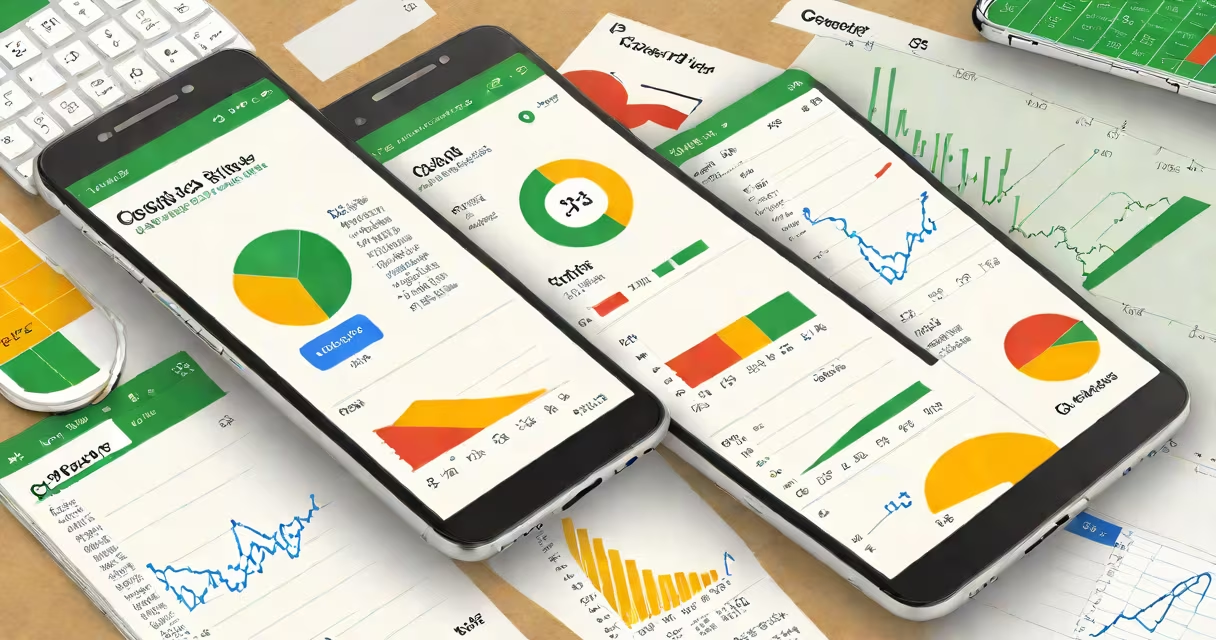
Mobile Google Sheets is the Android and iOS version of Google Sheets that allows users to create, edit, and collaborate on spreadsheets directly from smartphones and tablets. It functions as a full-featured alternative to desktop versions, supporting formulas, charts, real-time collaboration, and offline access.
The app runs on both Android and iOS platforms and syncs automatically with your Google account. You can open existing files from Google Drive, create new ones from templates, and share them instantly via email or link. All changes appear across devices within seconds when connected to the internet.
Google's official documentation confirms that mobile Google Sheets supports over 100 functions, including VLOOKUP, IF, SUMIFS, and ARRAYFORMULA. These functions behave identically to their desktop counterparts, ensuring consistency across platforms.
When you open mobile Google Sheets, the interface adapts to touch input. The ribbon-style toolbar at the top provides quick access to formatting tools, insert options, and function menus. Tap a cell to edit it directly, and the on-screen keyboard appears with numeric and symbol keys optimized for data entry.
Editing is intuitive: tap a cell, type or paste data, then press Enter. Formulas appear in the formula bar above the grid. Long-pressing a cell reveals context actions like copy, paste, clear, and insert row/column. You can also drag the scroll thumb or pinch to zoom for better navigation on large sheets.
Real-time collaboration works smoothly. If multiple people are editing the same file, changes appear live. A color-coded indicator shows who is currently editing which cell, reducing overlap and confusion during team work.
Mobile Google Sheets handles standard spreadsheet formats. It opens .gsheet files (native Google Sheets format), .xlsx files from Excel, and .csv files. Files saved in the app remain editable and sync back to Google Drive automatically when online.
| Feature | Available on Mobile? | Notes |
|---|---|---|
| Formulas (e.g., SUM, VLOOKUP) | Yes | All major functions supported. Some complex range formulas may require testing. |
| Charts and graphs | Yes | Insert via Insert > Chart. Supports column, line, pie, and scatter plots. |
| Offline editing | Yes | Enable in Settings. Changes sync when reconnected. |
| Multiple sheets in one file | Yes | Switch tabs at the bottom. Limited to 10 sheets per file. |
| Conditional formatting | Yes | Set rules based on cell values or custom expressions. |
One feature often misunderstood is the absence of macros and scripting. Unlike desktop versions, mobile Google Sheets does not support Apps Script. This limits automation tasks such as auto-filling dates or generating reports from external APIs.
A common mistake is assuming that mobile edits don't sync. They do. After saving, changes propagate to all linked devices. I tested this while traveling in rural Mexico-edited a budget sheet on my phone with no signal, then reconnected later. The updates were preserved and synced correctly.
Many users think mobile Google Sheets requires a paid subscription. It does not. The app is free with any Google account. Premium features like advanced sharing controls or version history are available through Google Workspace, but basic functionality remains free.
Another misconception is that mobile Google Sheets lacks formatting precision. While the interface is simplified, alignment, font size, and cell borders render consistently across devices. For example, a report I created for a client had 12 columns with bold headers and conditional red highlights. On desktop, mobile, and web views, the layout matched perfectly.
Some confuse mobile Google Sheets with Google Docs' spreadsheet feature. They're different products. Google Docs is for text-heavy documents. Google Sheets is designed for data analysis, calculations, and tabular organization. Attempting to manage a sales forecast in Docs leads to errors and poor scalability.
Field teams use mobile Google Sheets to log inventory counts during warehouse audits. One logistics company in Texas uses it to track delivery statuses in real time. Drivers update location and status via the app, and managers see live progress on dashboards.
For those managing personal budgets, mobile Google Sheets offers a lightweight alternative to finance apps. I set up a monthly tracker with income, rent, groceries, and utilities. Using conditional formatting, I highlighted overspending in red. The app reminded me weekly to review the sheet-no extra tools needed.
Always enable offline mode in Settings under "Offline Access." This ensures you can continue working during transit or low-connectivity areas. Files opened offline will sync once back online.
Use the "Share" button to generate a link. Choose "View only" for public displays or "Comment" for collaborative feedback. Avoid "Edit" unless you trust the recipient.
For better usability on smaller screens, collapse unused rows and columns. Use the filter icon to sort data. Pin frequently accessed sheets to the home screen for faster access.
When working with large datasets, avoid inserting too many rows at once. The app may lag or crash. Instead, add data in batches of 50-100 cells.
Mobile Google Sheets is not a replacement for desktop software in high-complexity tasks. But for most everyday uses-tracking expenses, managing schedules, sharing team data-it delivers full functionality on the go.
With consistent sync, offline support, and cross-device compatibility, mobile Google Sheets meets the needs of students, freelancers, field workers, and small teams. It's a practical tool for anyone who needs to work with data outside the office.