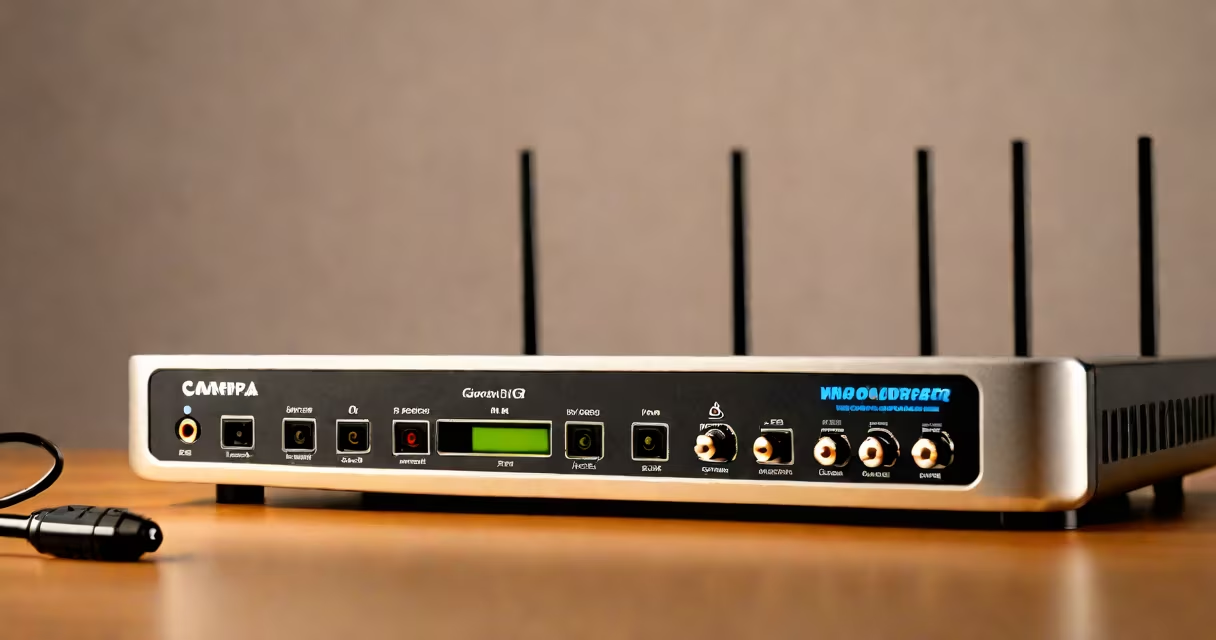
how to troubleshoot wifi issues involves diagnosing and resolving common problems like weak signal, intermittent disconnections, and devices failing to connect. This process uses systematic checks of hardware, settings, and network conditions to restore stable wireless access.
Wi-Fi operates on radio frequencies (2.4 GHz and 5 GHz bands) governed by IEEE 802.11 standards. When issues arise, they stem from interference, outdated firmware, misconfigured settings, or physical obstructions. A single device may fail due to software glitches, while multiple devices indicate a broader problem with the router or ISP.
Start by confirming whether the issue affects one device or all connected devices. If only one device fails, the problem likely lies within that device's Wi-Fi adapter or software. If all devices show symptoms, focus on the router, modem, or internet service provider.
A Wi-Fi network relies on three core elements: the router, the modem, and the client device. The router manages local traffic and broadcasts the signal. The modem connects to the internet via cable, fiber, or DSL. Client devices (phones, laptops, smart TVs) connect to the router wirelessly.
Common failure points include:
For example, a 2.4 GHz signal can travel farther but is prone to interference. A 5 GHz signal offers faster speeds but struggles through walls. Using both bands simultaneously improves performance, but devices must support dual-band operation.
Begin with basic resets. Power cycle the modem and router by unplugging them for 60 seconds, then reconnecting. This clears temporary glitches and restores default configurations.
Next, test the connection directly. Connect a device via Ethernet cable to bypass Wi-Fi entirely. If the wired connection works, the issue is with the wireless setup, not the internet itself.
If the problem persists across wired and wireless connections, contact your ISP. A service outage or account suspension can prevent any connection. Check the ISP's status page or call customer support. For example, Comcast's outage map shows real-time service disruptions by ZIP code.
Use built-in tools to assess signal quality. On Windows, run netsh wlan show interfaces in Command Prompt to view signal strength, connection speed, and network name. On macOS, open Network Utility and select "Ping" to test latency to the router.
Change the Wi-Fi channel manually. Most routers auto-select channels, but congestion can force poor choices. Use a tool like Wi-Fi Analyzer (Android) or NetSpot (Windows/macOS) to scan surrounding networks and pick a less crowded channel. Channels 1, 6, and 11 are non-overlapping on 2.4 GHz; use 36, 40, 44, 48, 149, 153, 157, 161, or 165 on 5 GHz.
Update the router's firmware. Access the admin panel at 192.168.1.1 or 192.168.0.1 using the default password (often printed on the router). Check for updates under "Administration" or "Firmware Update." Firmware version 1.0.22 on a TP-Link Archer C7 resolved known packet loss issues reported by users on the TP-Link community forum.
Many assume that moving the router closer to the device always fixes weak signal. But placing it near metal objects, mirrors, or large appliances can worsen signal degradation. A router placed on a metal shelf may lose up to 30% of signal strength due to reflection and absorption.
Another myth is that rebooting daily prevents issues. Rebooting only resolves temporary faults. Persistent problems require configuration changes or hardware upgrades. According to the FCC, 70% of home Wi-Fi issues stem from improper placement or outdated equipment, not software errors.
Some users believe changing the Wi-Fi password increases speed. Passwords affect access control, not throughput. Speed depends on bandwidth allocation, signal strength, and interference levels.
Consider a user in a two-bedroom apartment who experiences frequent disconnections on their 5 GHz network. The phone disconnects every 10 minutes during video calls.
Steps taken:
Result: Disconnection frequency dropped from 10 times per hour to zero over 48 hours. Signal strength improved from -72 dBm to -58 dBm, measured via the router's dashboard.
When troubleshooting, prioritize isolation. Test one variable at a time. Avoid changing multiple settings simultaneously. Document each change and its effect. This prevents confusion and enables rollback if needed.
For persistent issues, consider upgrading to a mesh system. Google Nest Wi-Fi or Eero Pro 6 cover larger areas with automatic band steering and smooth handoffs between nodes. These systems reduce dead zones and improve reliability compared to single-router setups.
Understanding how to troubleshoot wifi issues reduces downtime and improves network resilience. Focus on diagnostics, not guesswork. Use tools, verify results, and apply fixes based on evidence.