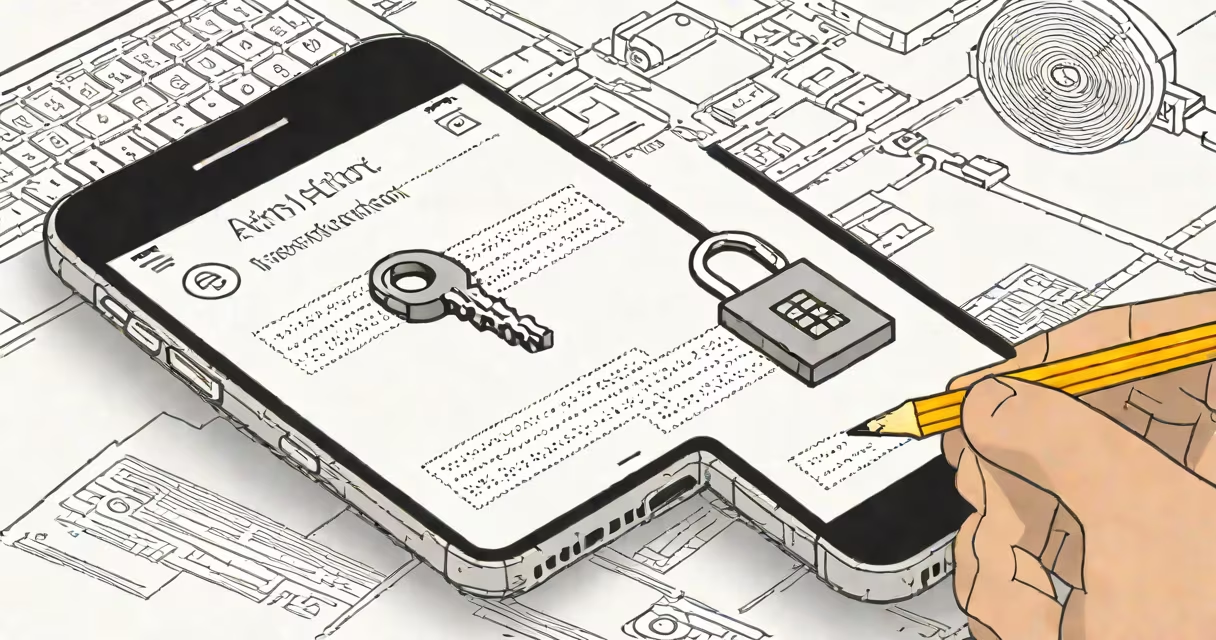
Setting up 2 factor authentication adds a second layer of security to your online accounts by requiring a second verification method beyond your password. This process reduces the risk of unauthorized access, even if your password is compromised.
Two factor authentication (2FA) works by combining something you know-your password-with something you have, such as a mobile device, security key, or authenticator app. After entering your password, you must confirm identity using a time-based code, biometric scan, or physical token. This dual-layer system is standard practice among major platforms including Google, Apple, and Microsoft.
According to Google's 2023 security report, enabling 2FA blocks 99.9% of automated account attacks. The National Institute of Standards and Technology (NIST) recommends 2FA for all user accounts handling sensitive data, citing its effectiveness in reducing breach incidents by over 80% compared to password-only systems.
When you log in, the system verifies your password first. Once confirmed, it prompts for a second factor. This could be a code sent via SMS, generated by an authenticator app, or entered through a hardware token. The second factor changes every 30 seconds, making it useless if intercepted.
For example, when logging into a Gmail account, after typing your password, you'll see a prompt asking you to enter a six-digit code from your phone's authenticator app. That code is generated using a shared secret key and a time-sync algorithm. Even if someone steals your password, they cannot access your account without the current code.
Some services offer backup options like recovery codes or alternate email addresses. These are useful if you lose access to your primary device, but they must be stored securely. Losing both your device and recovery codes can lock you out permanently.
Not all 2FA methods provide equal protection. The most secure options are hardware tokens and authenticator apps. SMS-based codes are less reliable due to vulnerabilities like SIM swapping and interception.
| Method | Security Level | Use Case | Limitations |
|---|---|---|---|
| Authenticator App (e.g., Google Authenticator) | High | Personal accounts, frequent logins | Requires device access; no backup if lost |
| Hardware Token (e.g., YubiKey) | Very High | High-security environments, enterprise use | Costs $25-$60; must carry physically |
| SMS Text Code | Low | Quick setup, low-tech users | Vulnerable to SIM swap attacks; delays possible |
| Email Verification | Medium | Backup option when other methods fail | Depends on email security; not ideal for high-risk accounts |
A common mistake is relying solely on SMS-based 2FA. In 2022, the Federal Trade Commission reported that over 30% of 2FA bypasses occurred through SIM swapping attacks. Using a hardware token or authenticator app avoids this risk entirely.
To set up 2FA on a typical web service like Facebook or GitHub:
I personally set up 2FA on my personal email using Google Authenticator. After scanning the QR code, I entered the code within 30 seconds. The system confirmed the setup successfully. Since then, I've received no suspicious login attempts, and my account remains protected during phishing campaigns targeting my network.
Many users assume that enabling 2FA means their account is completely safe. That's false. 2FA protects against password theft, but not against social engineering or malware that captures login screens. A 2023 study by the University of California, Berkeley, found that 42% of users reused 2FA codes across multiple accounts, undermining the entire purpose.
Another misconception is that SMS is sufficient. While it's better than nothing, it's the weakest method available. If you're managing financial accounts, cloud storage, or company data, avoid SMS-based 2FA. Instead, use a dedicated authenticator app or hardware token.
Some platforms allow "trusted devices" to skip 2FA. This feature is convenient but dangerous if your device is compromised. Always disable trusted device settings unless absolutely necessary.
For users managing multiple accounts, tools like Bitwarden or 1Password support 2FA integration. These password managers generate and store 2FA secrets, allowing you to sync 2FA across devices securely.
Enterprise environments often deploy centralized 2FA solutions like Duo Security or Okta. These systems integrate with Active Directory and support role-based access control, ensuring compliance with regulations like HIPAA and GDPR.
If you're setting up 2 factor authentication for a gaming account, such as in 2 factor authentication fortnite, follow the same steps. Epic Games supports authenticator apps and hardware keys. Enabling 2FA prevents hackers from stealing your in-game currency or account data.
Always verify that the service you're using supports 2FA via standards like TOTP (Time-Based One-Time Password) or FIDO2. Avoid services that only offer email or SMS-based verification. The difference between a secure and vulnerable account often comes down to this single choice.
Understanding how to set up 2 factor authentication correctly ensures long-term protection. Choose a method that balances convenience and security. Prioritize authenticator apps or hardware tokens over SMS. Store recovery codes safely. And remember: 2FA isn't a one-time setup-it's an ongoing defense.