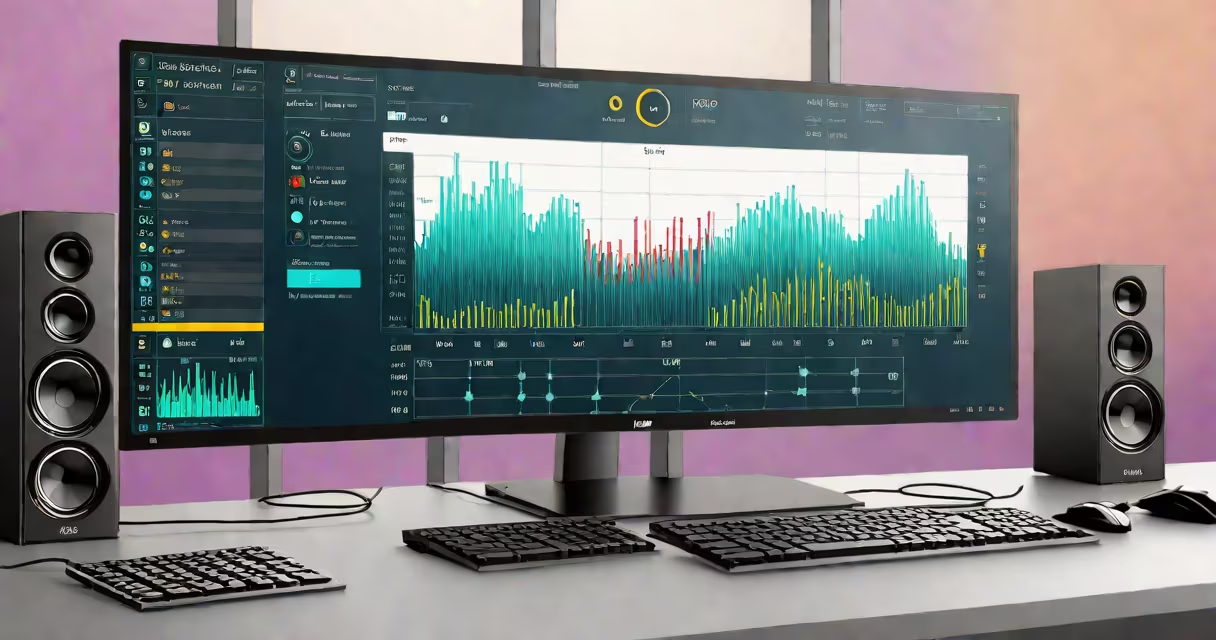
Equalizer APO Windows 10 is a free, open-source audio enhancement tool that applies real-time frequency adjustments to system-wide audio output. It runs as a Windows driver and processes audio signals before they reach speakers or headphones, enabling precise control over bass, mids, and treble.
Unlike basic volume controls or built-in sound profiles, Equalizer APO operates at the driver level. This means it affects all audio-music, video, games, calls-without requiring app-specific settings. It's designed for users who want consistent, customizable sound quality across every program.
Developed by a community of audio enthusiasts, Equalizer APO is not tied to any hardware manufacturer. It works with any audio interface, including USB DACs, built-in sound cards, and external audio devices. Its configuration is done through plain-text files, making it highly flexible and scriptable.
Equalizer APO functions as a kernel-mode driver that sits between the audio application and the physical audio device. When an app sends audio data, Equalizer APO intercepts it, applies filter settings based on a user-defined configuration file, then passes the adjusted signal to the output device.
The core of the system is the config.txt file located in the installation directory. This file contains instructions for creating filters-such as low-pass, high-pass, band-pass, and parametric EQs-that shape the frequency response. Filters are applied in sequence, allowing complex audio shaping.
For example, a user might define a 6 dB boost at 100 Hz to improve bass in electronic music. Another rule could apply a 3 dB cut at 2 kHz to reduce vocal sibilance. These changes happen in real time and are transparent to the user.
Setting up Equalizer APO requires manual editing of configuration files. There's no graphical interface by default, though third-party tools like EqualizerAPO GUI can simplify the process. The configuration uses a syntax similar to scripting languages, with commands like filter, type, and parameters.
Common filter types include:
| Type | Purpose | Example Use Case |
|---|---|---|
| Parametric EQ | Adjusts specific frequency bands with center frequency, bandwidth, and gain | Boosting 250 Hz for clearer vocals in podcasts |
| Low-Pass Filter | Blocks frequencies above a set threshold | Reducing high-frequency noise in old vinyl recordings |
| High-Pass Filter | Removes frequencies below a cutoff point | Eliminating rumble from microphone recordings |
| Peak Filter | Applies narrow boosts or cuts at a single frequency | Fixing a resonant peak at 1.2 kHz causing ear fatigue |
Users can create separate configurations for different output devices. For instance, one profile may emphasize midrange clarity for a pair of studio monitors, while another enhances bass for gaming headphones. Profiles are switched via a registry entry or a batch script.
Equalizer APO is used by audiophiles, gamers, podcast producers, and anyone seeking better sound quality without replacing hardware. It's especially valuable when working with budget headphones or speakers that have uneven frequency responses.
A real-world example: a user with a $30 USB headphone set reported significant improvement in music clarity after applying a 2 dB cut at 4 kHz and a 3 dB boost at 150 Hz. Before Equalizer APO, vocals sounded thin and distant. After the adjustment, the sound became fuller and more balanced-matching the intended mix of the track.
It's also used in professional audio workflows. A sound engineer in a home studio used Equalizer APO to correct phase issues in a stereo recording. By applying a 180-degree phase inversion on one channel and a 2 dB high-shelf filter, they eliminated a hollow sound that was unfixable in post-production.
Many assume Equalizer APO is a standalone audio player or a visual equalizer like those in media players. It is neither. It's a system-level audio processor. You cannot use it to play music-it only modifies audio after it's generated.
Another misconception is that it increases volume. It does not. Volume is controlled separately by the operating system or application. Equalizer APO adjusts frequency balance, not amplitude.
Some users confuse it with Windows' built-in "Sound Enhancements" feature. That option is limited to basic bass and treble sliders and only affects certain playback modes. Equalizer APO offers far greater precision and applies to all audio sources, regardless of format or app.
Equalizer APO does not require admin rights to run-but it does need them to install the driver. Once installed, it runs silently in the background. It doesn't consume noticeable CPU or memory unless processing complex filter chains.
I configured Equalizer APO on my Windows 10 machine to fix a persistent issue: a metallic ring in the upper midrange when listening to jazz recordings. Standard EQs in media players didn't resolve it. After analyzing the frequency spectrum using a tool like Audacity, I identified a 1.8 kHz resonance.
I added a 3 dB notch filter at 1800 Hz in the config.txt file. Within seconds, the ringing disappeared. The change was subtle but critical-the difference between enjoyable listening and fatigue during long sessions.
Tip: Always test changes in small increments. A 1 dB adjustment is often enough. Overdoing it can cause unnatural sound or feedback. Use reference tracks you know well to judge results.
Tip: Back up your config.txt file. A typo can break audio entirely. Use a text editor with syntax highlighting, such as Notepad++ or VS Code, to catch errors early.
Equalizer APO Windows 10 is a useful, lightweight tool for audio tuning. It's not for casual users who want quick fixes. But for those willing to learn its syntax and principles, it delivers measurable improvements in sound quality.
With proper setup, Equalizer APO Windows 10 transforms average audio output into a tailored listening experience. It's not magic-but it is effective.