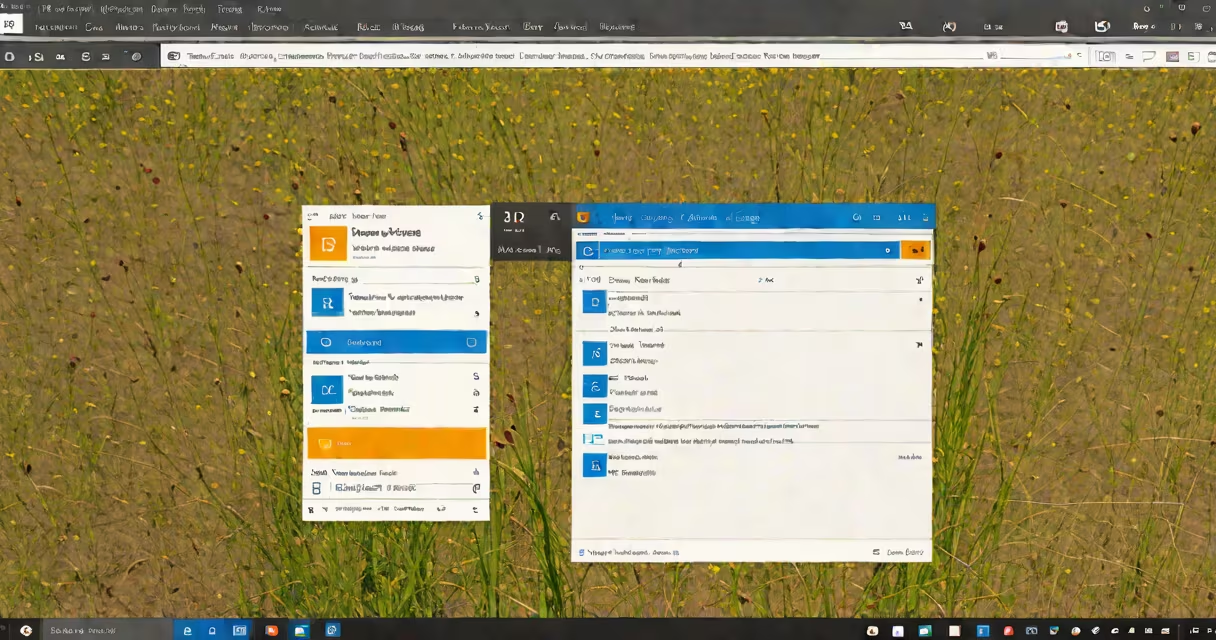
Changing the display language in Windows 10 alters the interface text-menus, buttons, and system messages-from English to another supported language, such as Spanish, Japanese, or German. This setting affects only the visible language of the operating system, not the underlying system files or user account settings.
The display language is distinct from the system's input language (used for typing) and regional format (which controls date, time, and number formatting). You can set different values for each. For example, you may type in French using a French keyboard layout while the system interface remains in English.
Microsoft supports over 100 languages for display in Windows 10, though availability depends on your edition (Home, Pro, Enterprise). Not all languages appear in the default list. Some require manual addition via language packs downloaded from Microsoft Update.
When you change the display language, Windows downloads and installs a language pack-a collection of localized resources including UI strings, icons, and help files. These are stored in the system directory under C:\Windows\WinSxS and loaded at startup based on your current language preference.
After installation, the desktop, Start menu, File Explorer, and Control Panel all render in the selected language. System prompts, error messages, and notifications follow suit. However, apps installed from third-party sources may not reflect the change unless they include their own localization support.
Language changes take effect after a reboot. The system doesn't apply the new display language during runtime because core components are locked during operation. Rebooting ensures all processes load with the updated language context.
Display language functionality relies on three core components: the Language Interface Pack (LIP), the Core Language Resources (CLR), and the Language Experience (LE) service. LIPs provide the visual elements like button labels and dialog boxes. CLR contains the base language infrastructure. LE manages user preferences and syncs settings across devices if you're signed into a Microsoft account.
Each language pack includes a unique identifier (LCID) and version number. For example, Japanese uses LCID 1041, and German uses LCID 1031. These IDs are used internally by Windows to route language-specific content.
Some languages require additional licensing. For instance, Arabic and Hebrew are available in Windows 10 Pro and Enterprise editions but not in Home Edition without a paid language pack upgrade. Users must install these through the Microsoft Store or via Group Policy in enterprise environments.
Windows 10 offers three primary categories of language support:
| Type | Availability | Example Languages | Notes |
|---|---|---|---|
| Pre-installed | Default on all editions | English (US), Spanish (Spain), French (France) | Available at install; no download needed |
| Downloadable | From Settings or Microsoft Update | Portuguese (Brazil), Russian, Turkish | Requires internet connection; size varies from 50 MB to 1 GB |
| Enterprise-only | Pro/Enterprise editions only | Arabic (Saudi Arabia), Chinese (Simplified), Korean | May require volume licensing or activation keys |
For example, switching to Hindi requires downloading a 620 MB language pack. The process takes 10-15 minutes on a stable broadband connection. After installation, the system must restart to apply changes.
Non-Latin scripts like Thai, Vietnamese, or Georgian require special rendering engines. These are enabled automatically when the language is added, but users may see garbled text until the correct font is installed. Always verify display correctness after changing the language.
Users change the display language for personal preference, accessibility, or work requirements. A business employee in Tokyo may switch to Japanese to improve communication with local clients. A student studying in Berlin might switch to German to better understand course materials.
Organizations often standardize language settings across departments. IT administrators use Group Policy to enforce a single display language across company devices. This reduces confusion and supports centralized help desk operations.
One overlooked issue: some legacy applications fail to render correctly in non-English displays. For example, older versions of Adobe Reader may show corrupted menus in Arabic or Cyrillic interfaces. Always test critical software after changing the language.
Many users assume that changing the display language automatically updates the input language. This is false. The input language-what you type-is controlled separately under "Keyboard" settings. Switching display to Finnish doesn't enable Finnish keyboard layouts. You must add them manually.
A frequent error is attempting to remove the default language (usually English). Windows prevents this unless you first set a replacement. Removing the last language causes system instability. The OS may fail to boot or display blank screens.
Another mistake: assuming language packs are free. While most are downloadable at no cost, some regional variants require purchase. For example, the "Chinese (Traditional)" language pack for Taiwan costs $12.99 USD via the Microsoft Store. Always check pricing before installing.
During my last deployment at a university lab, we encountered a bug where the German display language caused the login screen to freeze. The fix required disabling the language pack, rebooting, then reapplying it with the latest Windows Update patch. This happened because an outdated language pack conflicted with a recent security update.
To change the display language:
Once applied, you can manage additional settings like speech recognition, handwriting input, and font fallbacks under the language's options.
Changing the display language does not alter your user account name, file paths, or system folder names. These remain in English regardless of interface language. For example, the Documents folder still appears as "Documents" even in a Spanish interface.
It also does not affect the language of websites or web applications. Browsers like Edge or Chrome maintain their own language preferences. To change browser language, adjust settings within the application itself.
Finally, it's not the same as enabling a new keyboard layout. You can have a German display language with a U.S. English keyboard. Typing behavior is independent of interface language.
Understanding the difference between display language, input language, and regional format prevents configuration errors. Always verify each setting independently when troubleshooting.
Changing the display language in Windows 10 is a straightforward process that enhances usability for multilingual users. Follow the steps above to ensure a smooth transition without unintended side effects.