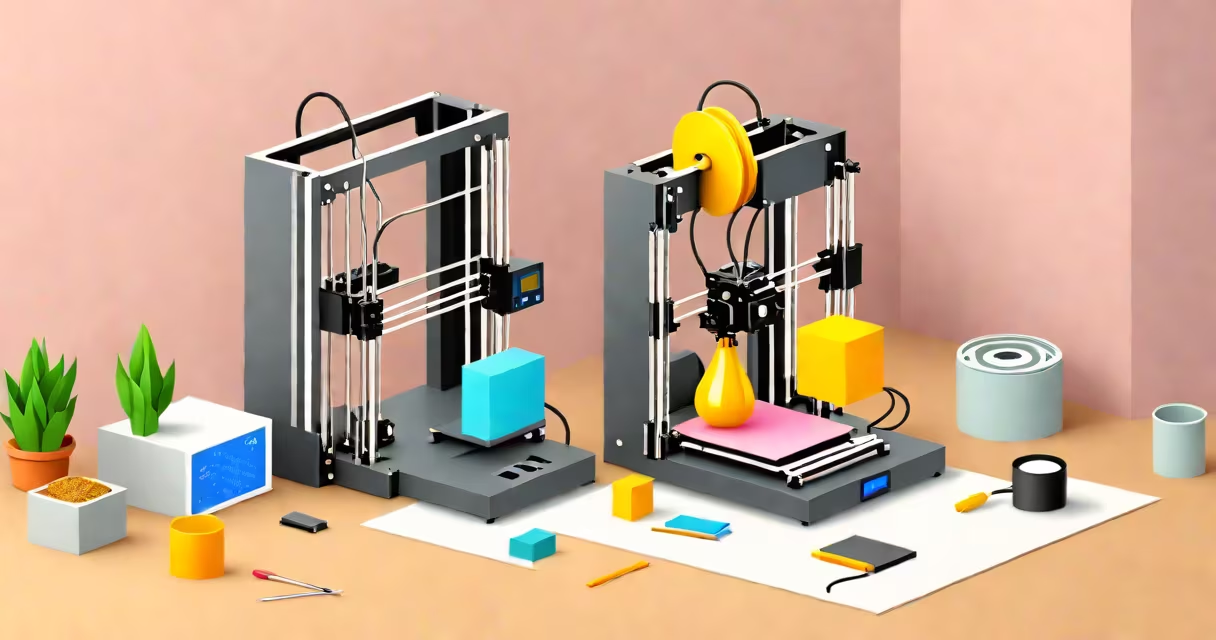
A 3D printer file is a digital model that contains the geometric instructions a 3D printer uses to create a physical object, layer by layer. It defines shape, size, and structure using coordinates and mesh data. Most files are exported in standard formats like STL or OBJ.
These files originate from 3D modeling software such as Blender, Fusion 360, or Tinkercad. They are then sent to a 3D printer via USB, SD card, or network connection. The printer's firmware slices the file into thin horizontal layers, calculates toolpaths, and executes the print based on those instructions.
The most common format is STL (stereolithography), which stores surface geometry as a collection of triangles. A single STL file can be 10 KB or 100 MB depending on complexity. Other formats include AMF (Additive Manufacturing File), which supports color and material metadata, and 3MF, designed to fix limitations in older formats.
When a 3D printer receives a file, it runs a process called slicing. Slicing software-like Cura, PrusaSlicer, or Simplify3D-analyzes the 3D model and generates G-code, the low-level machine language that controls the printer's motors, extruders, and heaters.
For example, a simple cube model at 20 mm × 20 mm × 20 mm may generate 1,200 layers. Each layer is 0.2 mm thick. The slicer calculates the path the nozzle must follow to deposit filament, typically PLA or ABS plastic, at 200°C. The printer moves along X, Y, and Z axes, building the object from the ground up.
Without proper file preparation, prints fail. Common issues include missing supports, incorrect orientation, or invalid geometry. A poorly closed mesh can cause gaps in the model, leading to weak or incomplete parts.
Not all 3D printer files are equal. The choice of format affects compatibility, quality, and workflow efficiency.
| Format | Best For | Key Features | Limitations |
|---|---|---|---|
| STL | Most consumer printers | Simple, widely supported, lightweight | No color, texture, or material info |
| OBJ | High-fidelity rendering, animation | Supports textures and materials | Larger file size, less common in printers |
| AMF | Industrial and multi-material printing | Supports color, metadata, complex structures | Not all printers support it natively |
| 3MF | Modern desktop and professional systems | Compact, efficient, includes metadata | Still emerging; limited legacy support |
STL remains dominant due to its simplicity and broad compatibility. Over 80% of files shared on platforms like Thingiverse use STL, according to a 2023 survey by the 3D Printing Association. However, AMF and 3MF offer better data integrity and are gaining traction in engineering and medical applications.
3D printer files enable rapid prototyping, custom manufacturing, and on-demand production. Engineers use them to test part designs before injection molding. Schools teach CAD and 3D printing using files to build models of molecules, gears, or architectural structures.
For hobbyists, files are downloaded from repositories like MyMiniFactory or Printables. A user might download a 3D printer file for a phone stand, slice it with Cura, and print it in under 30 minutes on a Creality Ender 3.
In healthcare, surgeons use patient-specific 3D printer files to plan complex surgeries. A 2022 study published in *The Lancet Digital Health* showed that using 3D-printed anatomical models reduced surgical time by 18% in craniofacial procedures. The models were created from CT scans converted into 3D printer files.
Many assume that any 3D model can be printed directly. That's false. A file must be watertight-meaning no holes or overlapping surfaces-and properly scaled. A model exported from a CAD program may have internal voids or non-manifold edges that prevent successful printing.
Another mistake is ignoring print orientation. Rotating a part can reduce support material by up to 70%, saving time and filament. A gear printed vertically requires more supports than one rotated flat. Orientation also affects strength-parts are stronger along the XY plane than the Z axis due to layer bonding limits.
One non-obvious issue: file resolution. High-resolution models increase processing time and memory usage. A 100,000-triangle model may take 15 seconds to slice; a 1 million-triangle version can take five minutes. Oversampling leads to longer wait times without visible gains in quality.
I once tried printing a detailed figurine from a high-poly model. The slicer crashed repeatedly. After reducing the polygon count to 50,000 and ensuring the mesh was manifold, the print completed successfully in under two hours.
When a 3D printer file fails, start with validation. Tools like Netfabb or Meshmixer detect errors and repair them automatically. These tools can close gaps, remove intersecting faces, and simplify geometry.
Conversion between formats is often necessary. A model saved as a STEP file (used in CAD) cannot be printed directly. It must be exported to STL or 3MF. Software like Autodesk Fusion 360 handles this conversion smoothly.
If a file won't load, check the file extension. Some programs rename .stl files as .stla or .stlb. Rename the file to .stl and try again. Also verify that the file isn't corrupted-open it in a viewer like FreeCAD or 3D Builder to confirm it renders correctly.
For advanced users, scripting tools like Python with the trimesh library can batch-process files, validate geometry, and export optimized versions. This approach scales well for large projects or automated workflows.
A 3D printer file is not just a digital image-it's a precise set of instructions that translates into physical form. It must be accurate, complete, and compatible with the printer's capabilities. Choosing the right format, preparing the model properly, and validating the file before printing prevents wasted time and failed builds.