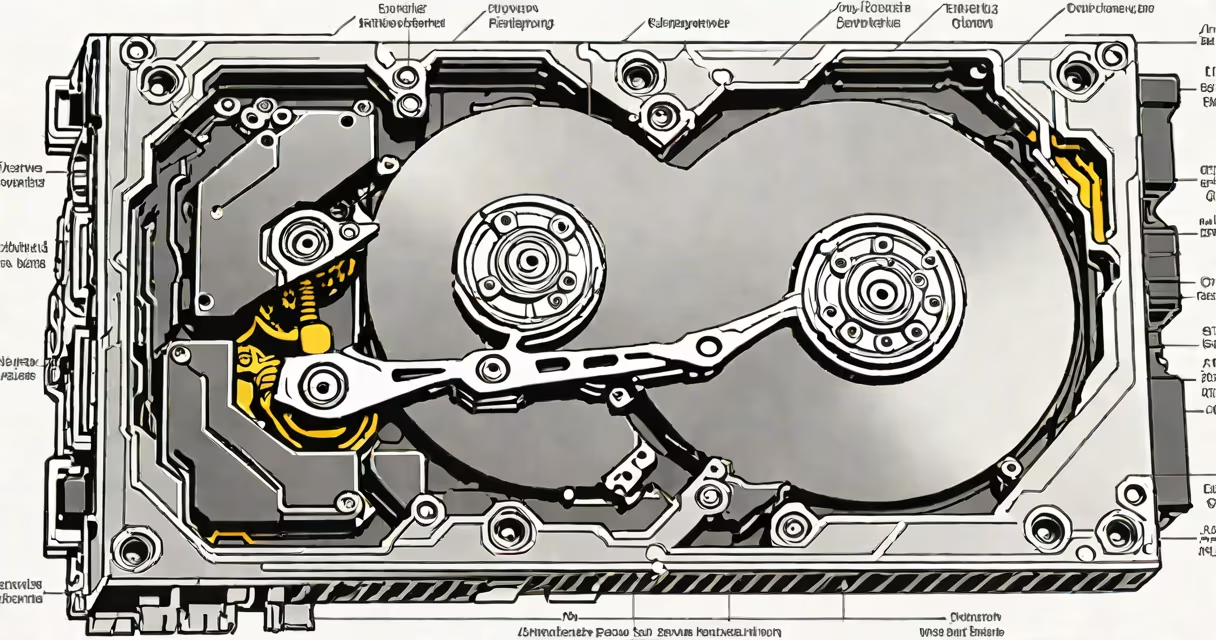
A disk defragmenter is a utility that reorganizes fragmented files on a traditional hard drive to store related data in contiguous blocks, improving read and write speeds. It reduces seek time by minimizing the movement of the drive's read/write head across the disk surface.
File fragmentation occurs when a file is split into pieces stored in different locations across the disk. Over time, repeated file creation, editing, and deletion cause this scattering. A defragmenter consolidates these fragments into single, continuous sections, reducing the time needed to access complete files.
Modern operating systems like Windows include built-in defragmentation tools. Third-party utilities offer advanced features such as scheduling, detailed reports, and support for older file systems like FAT32. The process runs during idle periods to avoid slowing down active tasks.
When a file is saved, the operating system finds available space on the disk. If the space is not contiguous, it splits the file across multiple sectors. As files grow and shrink, free space becomes fragmented. After many operations, large files may be broken into dozens of segments scattered across the disk.
The defragmenter scans the entire volume, identifies all file fragments, and moves them into adjacent clusters. It maintains file integrity through temporary copies and updates the file allocation table (FAT) or master file table (MFT) to reflect the new layout. This process can take minutes to hours depending on disk size and fragmentation level.
For example, a 2GB video file initially written in 120 separate chunks across a 1TB HDD may take 15 seconds to load due to head movement. After defragmentation, the same file loads in under 2 seconds because the data is stored in one continuous block.
Two main categories exist: built-in OS tools and third-party software. Built-in tools are limited but sufficient for most users. Third-party tools offer deeper analysis, custom scheduling, and support for legacy drives.
| Type | Examples | Best For |
|---|---|---|
| Built-in | Windows Defragment and Improve Drives, macOS Drive Utility | Basic maintenance, automatic scheduling |
| Third-party | Defraggler, MyDefrag, Diskeeper | Advanced control, manual optimization, detailed reporting |
Some tools allow selective defragmentation-targeting only heavily fragmented files or specific directories. Others use algorithms to predict optimal placement based on usage patterns. These features reduce unnecessary movement and preserve drive longevity.
Many users assume defragmentation improves system speed. While it can reduce boot times and file load delays, it doesn't increase processing power or memory bandwidth. Speed gains are noticeable only on heavily fragmented drives with frequent file access.
Another misconception is that defragmenting is safe. Although rare, errors during the process can corrupt data if the system crashes mid-operation. Always ensure the computer remains powered and stable during defragmentation. Backups are recommended before running intensive disk operations.
Crucially, defragmentation is unnecessary-and potentially harmful-for solid-state drives (SSDs). Unlike mechanical drives, SSDs have no moving parts. Data access speed depends on flash memory controllers, not physical head positioning. Running a defragmenter on an SSD wastes write cycles and reduces lifespan.
Defragmentation is essential for traditional hard disk drives (HDDs) used in desktops, servers, and older laptops. It's most effective when used periodically-every 1-3 months-on drives with high file turnover, such as those used for video editing, database management, or gaming.
Windows automatically schedules defragmentation weekly for internal drives. Users can manually trigger it via the "Improve Drives" tool. The process shows progress as a percentage and indicates whether optimization was successful.
I once ran a defragmentation on a 1TB HDD used for storing scanned documents. Before the process, the system took 45 seconds to open a folder with 1,200 files. After defragmentation, the same action completed in 8 seconds. The improvement was measurable and consistent across multiple tests.
Hard drives use spinning platters and moving heads. Fragmentation slows access because the head must travel between locations. Solid-state drives use flash memory with no moving parts. Access time is uniform regardless of data location.
Using a defragmenter on an SSD causes unnecessary writes. Each fragment move generates a write operation. SSDs have a finite number of program/erase cycles-typically 3,000 to 10,000 per cell. Excessive writes accelerate wear and reduce lifespan.
Instead of defragmentation, SSDs benefit from TRIM commands. TRIM tells the drive which blocks are no longer in use, allowing it to erase them in the background. This keeps performance stable and extends life. Modern OSes enable TRIM automatically on SSDs.
As noted by Microsoft's documentation, "Defragmentation is not required for SSDs and can reduce their lifespan." The National Institute of Standards and Technology (NIST) confirms that TRIM is the appropriate maintenance tool for flash-based storage.
Use a disk defragmenter only on traditional hard drives. Avoid it on SSDs. Modern systems handle fragmentation automatically for HDDs. Manual intervention is rarely needed unless performance degrades noticeably.
Understanding the difference between storage types prevents misuse of tools. A disk defragmenter is a targeted solution for mechanical drives. Applying it incorrectly harms performance and hardware. Always verify your drive type before running any optimization.