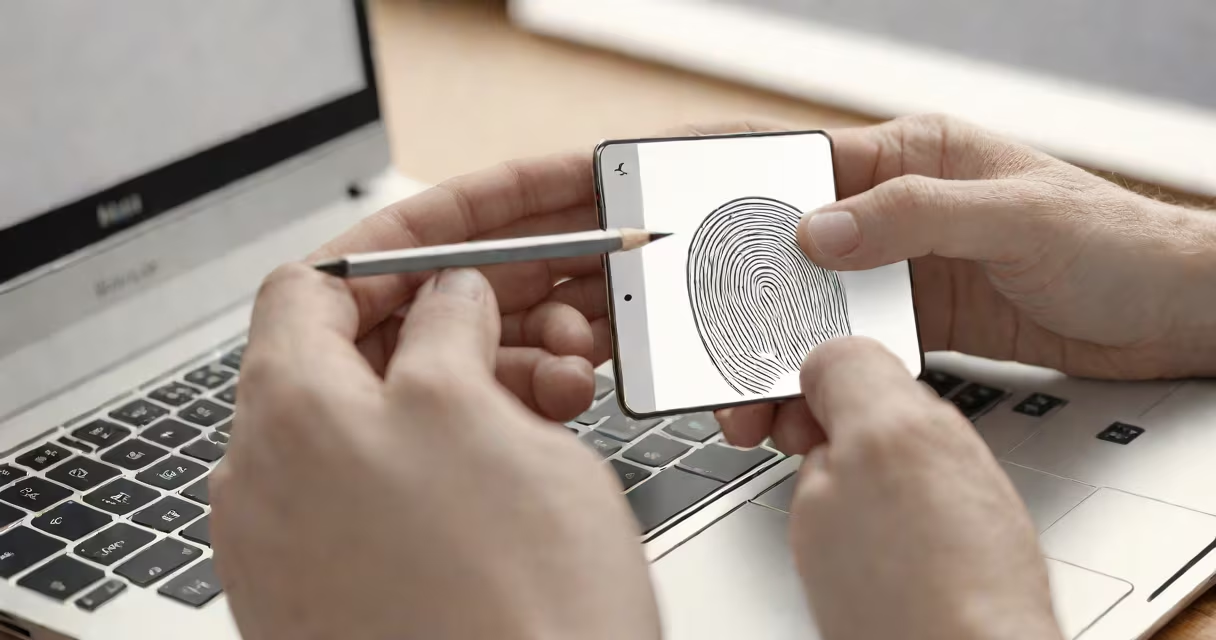
Resetting Windows Hello restores access to biometric sign-in features like facial recognition, fingerprint scanning, or PIN entry when they stop working. This process removes stored biometric data and forces re-enrollment, resolving failures due to hardware changes, software updates, or corrupted profiles.
Windows Hello uses local device storage to save facial or fingerprint templates. These aren't sent to Microsoft or cloud servers. When sign-in fails repeatedly, the system may lock out the biometric profile. Resetting clears this state and allows fresh enrollment. You can reset through Settings, Command Prompt, or PowerShell.
Common triggers include Windows updates, driver changes, hardware replacement (like a new camera or touchpad), or profile corruption. If you're locked out of your account and can't log in via password, resetting Windows Hello may be necessary to regain access.
When you reset Windows Hello, the system deletes all locally stored biometric templates and PINs tied to your user profile. The next time you attempt to sign in, the system prompts you to set up Windows Hello again. This includes re-capturing your face, fingerprint, or setting a new PIN.
The reset process doesn't affect your user account, files, or passwords. It only clears the biometric data and PIN. Your account remains intact, and you can still sign in using your Microsoft account password or local password.
For example, after updating to Windows 11 version 23H2, a user reported that facial recognition failed despite working before. Re-enabling Windows Hello via Settings didn't help. Running the command netplwiz and selecting "Users must enter a user name and password" temporarily disabled biometrics. After rebooting and re-enrolling, sign-in resumed normally.
Three primary methods exist: through Settings, Command Prompt, or PowerShell. Each targets different scenarios.
| Method | Best For | Access Level | Notes |
|---|---|---|---|
| Settings app | Quick reset when logged in | User | Safe, guided flow. Clears all biometrics and PIN. |
| Command Prompt | Automated scripts or remote access | Admin | Use netsh winsock reset and restart. Not direct, but resets network stack affecting Hello. |
| PowerShell | Batch operations or troubleshooting | Admin | Run Remove-WindowsHelloPin in elevated session. Requires Windows 10/11. |
To reset via Settings:
Using PowerShell requires admin rights. Open PowerShell as administrator and run:
Remove-WindowsHelloPin -User <username>Replace <username> with your actual user name. This command removes the PIN only. Face and fingerprint data remain until manually cleared via Settings.
Many users assume resetting Windows Hello deletes their entire account or wipes personal data. This is false. The reset only clears biometric templates and PINs. Files, settings, and passwords remain untouched.
Another misconception is that resetting fixes all sign-in problems. If the issue stems from a corrupted user profile or missing system files, resetting Windows Hello won't help. In such cases, running sfc /scannow or DISM /Online /Cleanup-Image /RestoreHealth may be required first.
A non-obvious fact: Windows Hello stores facial data in a secure enclave on compatible processors (Intel SGX or AMD SEV). If the chip lacks this, data is stored in the TPM (Trusted Platform Module). If the TPM is disabled or damaged, Windows Hello fails even after reset. Check tpm.msc to verify TPM status.
I once encountered a user whose laptop had a broken IR camera after a drop. Windows Hello kept failing despite multiple resets. The root cause was hardware damage, not software. Replacing the camera resolved the issue. Resetting Windows Hello wouldn't fix physical damage.
After resetting, you must re-enroll your biometric data. This step is critical for security and reliability. During re-enrollment, ensure good lighting for facial recognition and clean fingers for fingerprint scans.
If you're unable to re-enroll due to hardware failure, consider using a USB-based biometric reader or relying on a strong local PIN. A 6-digit PIN is more secure than a 4-digit one and less prone to brute-force attacks.
For users who rely on Windows Hello for work, especially in healthcare or finance, resetting should be documented. Some organizations require audit logs for biometric access changes. Use Group Policy or Intune to track resets in enterprise environments.
Resetting Windows Hello is a targeted fix for biometric sign-in failures. It's safe, reversible, and effective when done correctly. Always back up your password and PIN before proceeding.