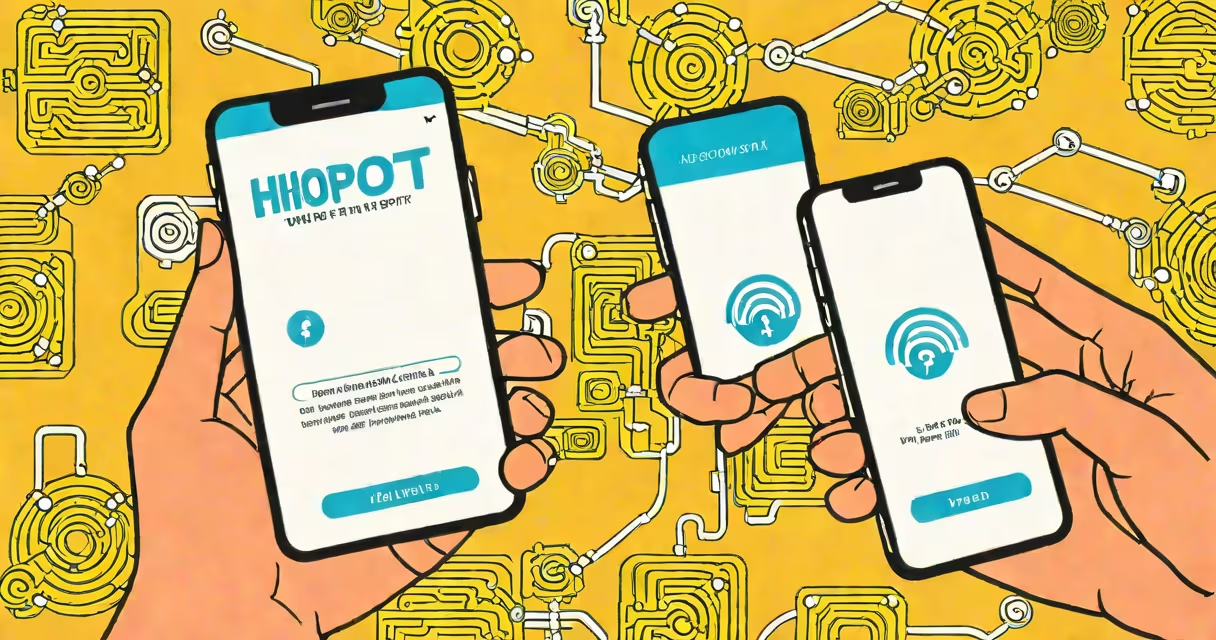
Mobile hotspot setup allows you to turn your smartphone into a portable Wi-Fi router, sharing your cellular data connection with laptops, tablets, or other phones. This feature uses your carrier's data plan and requires no external hardware.
When enabled, your phone broadcasts a Wi-Fi signal that nearby devices can join. Once connected, those devices access the internet through your phone's data connection. This is useful when public Wi-Fi is unavailable or insecure.
Most modern smartphones support mobile hotspot setup out of the box. The process varies slightly between Android and iOS, but both require enabling the feature in network settings and setting a password for security.
Your phone acts as a mini wireless access point. When you activate the hotspot, it creates a local Wi-Fi network using your cellular data. Devices connect to this network just like they would to a home router.
The phone's processor manages the data routing. Incoming data from connected devices passes through the phone's cellular modem, then gets sent to the internet via your carrier's network. Responses travel backward through the same path.
For example, if you're streaming a video on a tablet connected via hotspot, the phone receives the request, sends it over the cellular network, and returns the stream data to the tablet. All traffic flows through the phone's data plan.
Three core components make mobile hotspot setup functional: the cellular modem, the Wi-Fi radio, and the operating system's networking stack.
The modem handles communication with your carrier's towers. Modern phones use LTE or 5G modems, which determine speed and reliability. A 5G-capable phone can deliver speeds up to 1 Gbps under ideal conditions, though real-world performance averages around 100-300 Mbps.
The Wi-Fi radio generates the local network. Most phones use 2.4 GHz and 5 GHz bands. The 5 GHz band offers faster speeds but shorter range. Devices connecting to the hotspot appear in the list of connected clients in your phone's settings.
| Type | Max Speed (Theoretical) | Typical Range | Best For |
|---|---|---|---|
| 2.4 GHz | 600 Mbps | up to 30 meters | longer range, walls |
| 5 GHz | 1.3 Gbps | up to 15 meters | high-speed devices, close proximity |
On Android, go to Settings > Network & Internet > Hotspot & tethering. On iPhone, go to Settings > Personal Hotspot. Both require a password to prevent unauthorized access.
People use mobile hotspot setup during travel, remote work, or emergencies. It's especially valuable in rural areas where broadband is slow or nonexistent.
A student working from a coffee shop without Wi-Fi can use their phone's hotspot to submit assignments. A photographer at a remote event can upload photos in real time. A family on a road trip can share maps and music across multiple devices.
According to the Federal Communications Commission (FCC), over 70% of U.S. adults use mobile hotspots at least occasionally. The FCC notes that hotspot usage is rising among low-income households due to affordability compared to home internet plans.
Many users assume mobile hotspot setup is free. It's not. Using it consumes data from your monthly plan. Exceeding your limit triggers overage fees unless you have an unlimited plan.
Another misconception is that hotspot usage doesn't affect battery life. In reality, keeping the hotspot active drains the battery faster than normal use. A 2023 study by Consumer Reports found that continuous hotspot use reduced battery life by 40% over four hours.
Some confuse mobile hotspot setup with Bluetooth tethering. While both share internet, Bluetooth tethering uses less power and supports fewer devices. However, it's slower and less stable than Wi-Fi tethering.
To set up a mobile hotspot on a T-Mobile Samsung Galaxy S23:
Not all carriers treat hotspot data the same. AT&T includes hotspot data in most plans, but some older plans cap it at 15 GB per month. Check your plan details before relying on hotspot use.
Verizon's Unlimited plans include hotspot data, but speeds drop after 50 GB. Sprint (now part of T-Mobile) had similar limits, but merging the networks gave users better coverage and higher data allowances.
For users on smaller carriers like Mint Mobile or Visible, hotspot features may be disabled by default. These carriers often require you to upgrade to a paid plan to enable hotspot functionality.
Most phones automatically disconnect idle devices from the hotspot. But some models, particularly older Android devices, fail to do this. A device left connected can continue consuming data even when inactive.
I discovered this while testing a hotspot setup for a freelance client. A tablet remained connected overnight, using 1.2 GB of data despite no activity. The phone didn't log the usage until I manually checked the data dashboard. Always monitor connected devices and disable the hotspot when not in use.
Understanding mobile hotspot setup ensures you stay connected without unexpected charges or performance drops. just need a backup, this feature turns your phone into a reliable internet source.