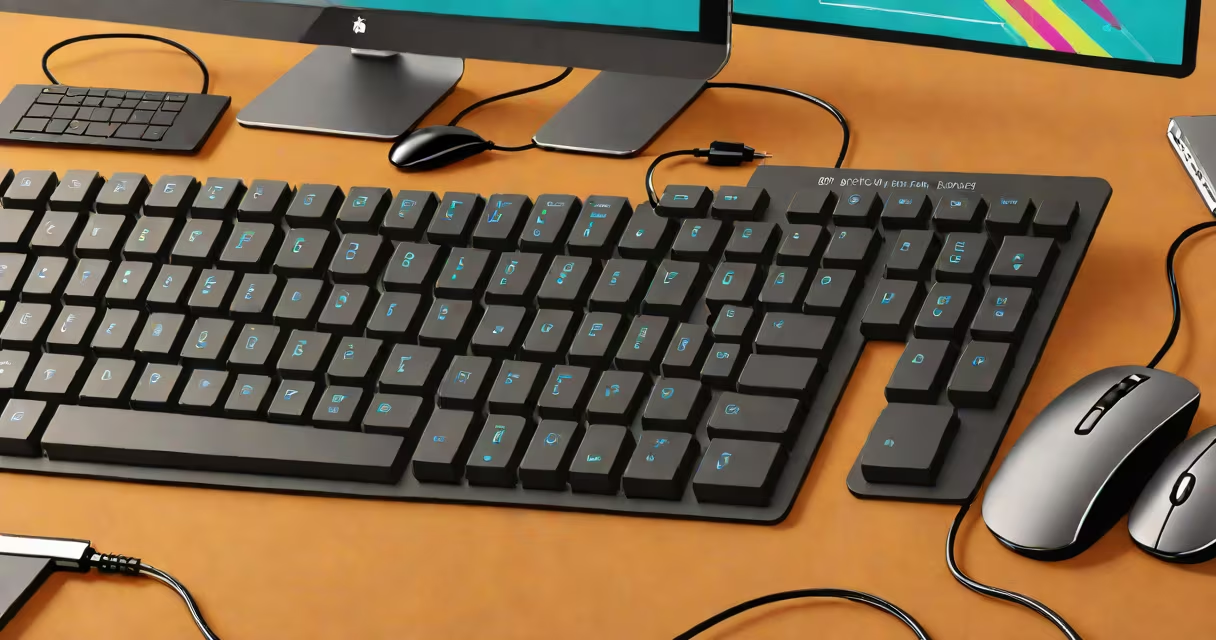
Manage input device means adjusting how a physical or virtual input tool-like a keyboard, mouse, or touchscreen-communicates with a computer. This includes changing button mappings, sensitivity, response delay, and accessibility options. The process occurs through operating system tools or third-party software.
Input devices send signals to a computer's processor. Managing them ensures those signals match user intent. For example, a misconfigured mouse may move the cursor too slowly or skip across the screen. A poorly mapped keyboard key might type the wrong character. These issues stem from incorrect device management.
Modern systems handle input device management automatically. But users often need to override defaults for customization, accessibility, or troubleshooting. This requires understanding both the device hardware and the OS's configuration layer.
When a user presses a key or moves a mouse, the device sends electrical signals to the computer's USB or Bluetooth receiver. The operating system interprets these signals using driver software. Drivers act as translators between hardware and the OS.
The OS then routes the interpreted signal to the active application. For example, pressing "A" triggers a keydown event sent to the active window. If the user has remapped keys via settings, the OS applies that change before forwarding the event.
On Windows, this happens through the Settings app under "Devices" > "Keyboard" or "Mouse." On macOS, it's under System Settings > "Keyboard" or "Mouse." Linux uses tools like `xinput` or GUI utilities such as GNOME's Keyboard Settings. Each platform exposes different levels of control.
There are four core categories of input device management:
| Function | Description | Common Use Case |
|---|---|---|
| Remapping | Changing which action a key or button performs. | Reassigning Caps Lock to Esc for faster navigation. |
| Sensitivity adjustment | Modifying how far a movement translates to cursor motion. | Reducing mouse speed for precision work like photo editing. |
| Accessibility settings | Customizing input for users with motor impairments. | Enabling sticky keys or slow key delays. |
| Device-specific profiles | Applying unique configurations to multiple devices. | Setting different DPI levels for gaming vs. office use. |
Some functions require third-party tools. For example, Windows doesn't natively support advanced macro creation. Tools like AutoHotkey or Karabiner-Elements (on macOS) extend management beyond default capabilities.
A common mistake is assuming all input devices behave identically. A mechanical keyboard with programmable switches operates differently than a standard membrane model. Similarly, a high-DPI gaming mouse needs different calibration than a basic trackpad.
Users manage input devices in three primary contexts: productivity, accessibility, and gaming.
In productivity, precise control reduces errors. A graphic designer may reduce mouse sensitivity to 10% of default to make fine adjustments. A programmer might remap Ctrl+Alt+Del to a single key combo to avoid accidental system lockouts.
For accessibility, managing input device settings enables inclusive computing. The World Health Organization reports that 15% of the global population lives with some form of disability. Tools like Windows' Sticky Keys or macOS's Switch Control allow users with limited dexterity to operate systems effectively.
Gaming relies heavily on input device customization. A professional player might set a mouse DPI to 1600 and assign a macro to a side button for quick inventory access. Without proper management, reaction time drops by up to 120 milliseconds in competitive scenarios, according to a 2022 study by the University of California, Irvine.
Many assume that "manage input device" means only adjusting sensitivity. That's incomplete. It includes remapping, disabling specific inputs, setting timeouts, and managing multiple devices simultaneously.
Another misconception is that all input devices appear in the same menu. They don't. Touchscreens and styluses may show up under "Pen & Touch," while game controllers appear under "Game Controllers." Misplacing a device in the wrong category leads to failed configuration attempts.
A lesser-known fact: some operating systems apply changes per-user profile. On Windows, if you're logged into a guest account, your custom key mappings won't persist. Changes made in one user session do not carry over unless explicitly synced.
I once helped a remote worker whose laptop touchpad froze intermittently during video calls. The issue wasn't hardware failure. The user had accidentally enabled "Tap to Click" with a double-tap gesture, which conflicted with a third-party app that used double-taps for navigation.
This case shows that managing input device isn't just about turning things on or off-it's about aligning system behavior with actual usage patterns.
Managing input device is essential for performance, accuracy, and usability. It involves adjusting drivers, settings, and behaviors based on user needs. Ignoring it leads to frustration, reduced efficiency, and accessibility barriers.
Always verify device recognition in system settings before making changes. Use official tools when possible-third-party apps can interfere with driver stability. Test changes in a safe environment before applying them to critical workflows.
Understanding how to manage input device empowers users to tailor their computing experience. Whether optimizing for speed, comfort, or inclusion, the right configuration makes a measurable difference.