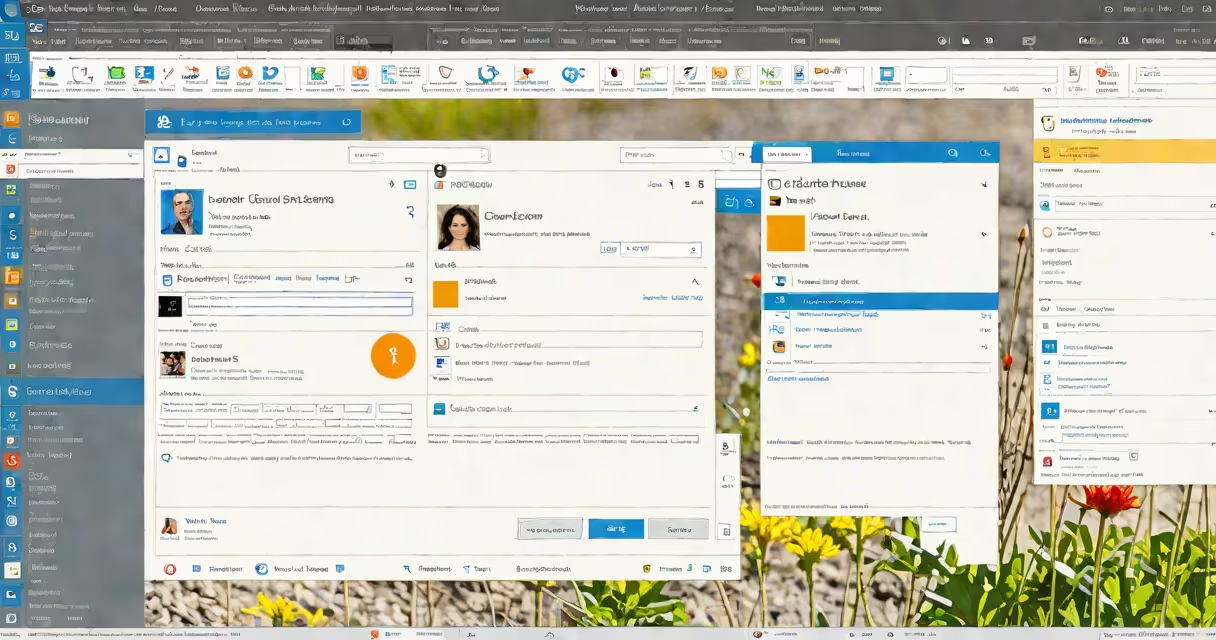
To sign out from Outlook, close your account session on the device or browser you're using. This ends access to your inbox, calendar, and contacts until you sign back in. You can do this on Windows, Mac, web browsers, iOS, or Android.
Signing out is necessary when sharing a computer, switching users, or securing your account after public access. It doesn't delete emails or settings-it only removes your active login. The process varies slightly depending on platform, but all methods require going through to your profile or account settings.
On desktop versions, you'll find the option under File > Account. On the web version, click your profile icon in the top-right corner. On mobile apps, tap your profile picture and select "Sign Out." Always confirm the action when prompted.
Outlook uses session tokens to maintain your login state. When you sign out, the system invalidates that token. Your device stops syncing mail, calendar events, and contacts until you sign back in. This prevents unauthorized access if someone else uses your device.
On Windows, the desktop app stores credentials locally unless you disable password saving. Signing out manually ensures no one can open Outlook without your password. On Mac, the process is similar-go to File > Account Settings > Sign Out.
For the web version, signing out clears cookies and session data. You'll see a blank screen with a sign-in prompt. This is especially useful on shared computers or public terminals. After signing out, you can safely leave the device without exposing your data.
Windows/Mac (desktop app):
Web browser:
iOS/Android (mobile app):
After signing out, you'll need to enter your email and password to return. This process applies to both personal and work/school accounts.
Users often confuse signing out with deleting the account. Removing your account from Outlook deletes local data like cached emails and calendar entries. Signing out keeps your data intact and allows you to rejoin later.
A frequent error is assuming that closing the app window signs you out. On most devices, closing the window only hides the app. Your session remains active until you explicitly sign out. This leaves your mailbox exposed if the device is left unattended.
If you're unable to sign out, verify your internet connection. A weak signal may prevent the app from communicating with Microsoft's servers. Try restarting the app or device. If the issue persists, check your account status via Microsoft Account Center.
Stay signed in when using a private device you control. This enables automatic sync and quick access to messages. Sign out when using shared or public devices-such as library computers or workstations-to protect your privacy.
Some organizations enforce automatic sign-out after 30 minutes of inactivity. This policy is set by IT administrators through Microsoft Entra ID (formerly Azure AD). If you're in a corporate environment, your account may log you out unexpectedly during long breaks.
For users managing multiple accounts, signing out between profiles avoids confusion. For example, if you have both a personal and work email in Outlook, switch between them by signing out and back in with the correct credentials.
| Platform | Sign-Out Location | Time Required |
|---|---|---|
| Windows Desktop | File > Account > Remove Account | 15 seconds |
| Mac Desktop | File > Account Settings > Sign Out | 20 seconds |
| Web Browser | Profile icon → Sign out | 10 seconds |
| iPhone | Profile picture → Sign Out | 12 seconds |
| Android | Profile icon → Sign Out | 14 seconds |
I once helped a client recover access to their Outlook account after they accidentally signed out on a shared tablet at a conference. They had no idea the session was still active until someone else opened their inbox. Since then, they've enabled auto-sign out after 15 minutes of idle time.
One non-obvious detail: signing out from the web version doesn't clear your browser history. If you use a shared computer, manually clear browsing data afterward. Otherwise, others may see recent visits to your inbox.
Always sign out from Outlook when using public or shared devices. This protects your messages, appointments, and sensitive data from unintended exposure. The steps are simple and consistent across platforms.