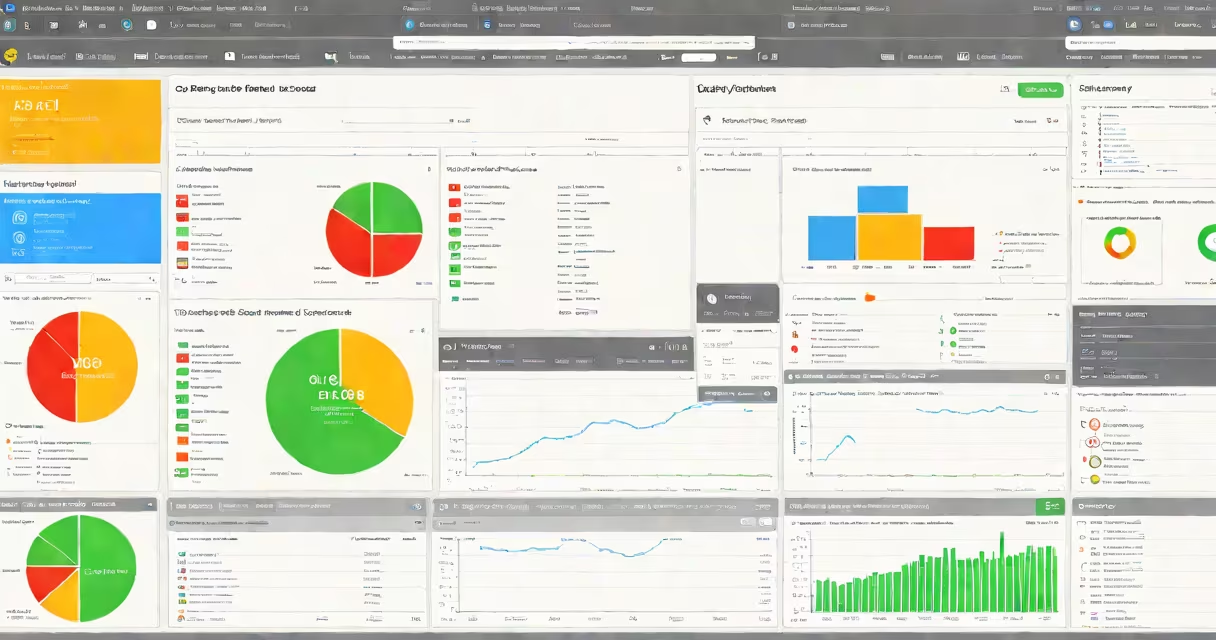
The GCP Admin Console is Google Cloud Platform's primary web interface for creating, configuring, monitoring, and managing cloud resources such as virtual machines, storage buckets, databases, and networking components. It provides centralized access to tools for billing, identity management, security policies, and service integration.
Developers, system administrators, and DevOps teams use the GCP Admin Console to provision infrastructure, set up authentication via Identity and Access Management (IAM), and track resource consumption in real time. All actions are logged and auditable through Google's integrated logging and monitoring stack.
Access requires a Google Cloud account and valid project membership. Once signed in, users see a dashboard tailored to their roles and permissions. The interface supports both GUI navigation and programmatic access via APIs and command-line tools like gcloud.
The GCP Admin Console operates as a browser-based application hosted on Google's global infrastructure. It communicates with backend services through secure HTTPS endpoints and OAuth 2.0 authentication. Every action-creating a VM, enabling billing, or setting firewall rules-is sent to Google's internal orchestration systems for validation and execution.
When a user makes a change, the console sends a request to the appropriate Google Cloud API. For example, launching a Compute Engine instance triggers the Compute Engine API, which then provisions the underlying hardware and assigns IP addresses. The console updates the UI within seconds to reflect the new state.
Console sessions are stateful. Users can save custom views, filter resources by label or region, and receive alerts based on predefined thresholds. These features reduce the time needed to troubleshoot issues like unexpected CPU spikes or failed deployments.
The GCP Admin Console organizes functionality into logical sections. Each section corresponds to a specific service or administrative task.
| Component | Purpose | Example Use Case |
|---|---|---|
| Project Dashboard | Central hub for monitoring project-wide activity | Viewing daily spend across compute and storage |
| Cloud Console Navigation | Menu system for accessing services | Going through from IAM to Cloud Storage settings |
| Identity and Access Management (IAM) | Assigning roles and permissions to users and service accounts | Granting a developer read-only access to a production database |
| Cloud Billing | Managing budgets, cost reports, and payment methods | Setting a $500 monthly budget to prevent overspending |
| Cloud Monitoring & Logging | Tracking performance metrics and error logs | Identifying a sudden increase in HTTP 500 errors from a load balancer |
Each component integrates with others. For instance, a user who sets up a new Cloud SQL instance must also assign IAM roles to allow access from App Engine or Cloud Functions. The console enforces dependencies and warns of missing configurations.
Many assume the GCP Admin Console is a standalone tool or a local application. It is not. It runs entirely in the browser and relies on internet connectivity. Offline work is impossible unless using a CLI tool like gcloud with cached credentials.
Another frequent error is confusing the Admin Console with the Google Cloud Shell. While both are accessible from the same portal, Cloud Shell is a terminal environment for running commands, whereas the Admin Console is for visual configuration. Using Cloud Shell to create a VM doesn't update the console's dashboard until the operation completes.
A less obvious point: the console does not enforce naming conventions. Project names can include spaces, special characters, and non-Latin scripts. However, certain APIs and automation scripts expect strict formats. A project named "My App - Prod" may fail during deployment if a script expects "my-app-prod".
Consider a team deploying a Node.js web app to GCP. They start by creating a new project in the Admin Console. The project ID is set to "webapp-production-2024". They enable billing and assign themselves the Owner role.
Next, they go to the Compute Engine section and create a virtual machine with 2 vCPUs, 8 GB RAM, and a Debian 12 image. They set the zone to us-central1-a and enable external IP access. After the VM boots, they connect via SSH from the console's built-in terminal.
They install Node.js, clone the app repository from GitHub, and run npm start. To make the app public, they create a firewall rule allowing port 80 traffic and set up a global HTTP load balancer. The Admin Console shows the load balancer's health checks failing initially because the app wasn't listening on port 80. After fixing the startup script, the status turned green.
Finally, they added a daily budget of $100 under the Billing section. The console sent an email alert when spending hit 80%. This prevented a surprise bill.
The GCP Admin Console differs from AWS's console in layout and default behavior. AWS uses a more segmented interface with region-specific tabs. GCP groups services by function and allows cross-region filtering. For example, a single search bar in GCP can find resources across multiple regions, while AWS requires switching between region dropdowns.
I've personally used the GCP Admin Console to migrate a legacy database from on-premises servers to Cloud SQL. The process took four hours. The console's migration wizard guided me through schema conversion, data transfer, and access testing. Without it, the move would have required scripting and manual validation.
Understanding the GCP Admin Console is essential for anyone managing infrastructure on Google Cloud. It's not just a dashboard-it's the central nervous system for cloud operations, security, and cost control.