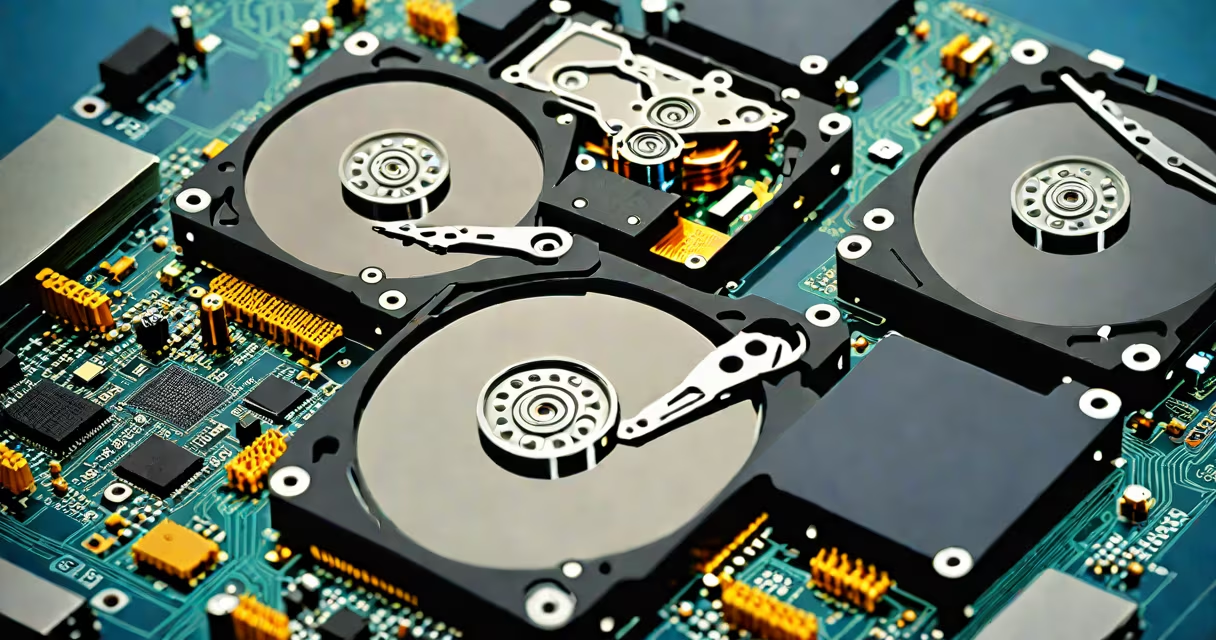
Computer hard drive types refer to the physical and technological categories of storage devices used to store data permanently. The two primary types are mechanical hard disk drives (HDDs) and solid-state drives (SSDs), each using different methods to read and write data. HDDs rely on spinning magnetic platters and moving read/write heads, while SSDs use flash memory with no moving parts.
HDDs have been standard since the 1950s. They store data magnetically on rotating disks, typically 3.5 inches for desktops and 2.5 inches for laptops. A read/write head floats nanometers above the surface, accessing data as the disk spins at 5,400 to 15,000 RPM. This mechanical motion limits speed and durability. Modern HDDs use perpendicular magnetic recording (PMR) and shingled magnetic recording (SMR) to increase density. PMR remains the most reliable format for consistent performance.
SSDs emerged in the 2000s and gained mainstream use by 2015. They store data in NAND flash memory cells, accessed electronically. Without moving parts, they offer faster access times, lower latency, and better resistance to shock. SSDs come in several form factors: 2.5-inch SATA, M.2 with SATA or NVMe interfaces, and U.2 or E1.S for enterprise systems. The interface determines maximum bandwidth: SATA III caps at ~600 MB/s, while NVMe over PCIe 4.0 reaches 5,000 MB/s.
HDDs function through precise mechanical alignment. Data is written in concentric tracks on rotating platters. As the disk spins at constant velocity, the head moves radially to access specific sectors. Seek time-the time to move the head to the correct track-is the dominant delay. Average seek times range from 8 to 12 milliseconds. Rotational latency depends on RPM: 7,200 RPM drives have a 4.17ms average latency, while 5,400 RPM models have 5.56ms.
SSDs operate entirely electronically. Data is stored in floating-gate transistors within NAND flash memory. The controller manages wear leveling, garbage collection, and error correction. Unlike HDDs, SSDs don't suffer from seek time. Access time is measured in microseconds-typically 100-200 μs for consumer drives. However, write endurance varies. Most SSDs use TLC (three-level cell) NAND, rated for 1,000 to 3,000 program/erase cycles per cell. High-end drives use QLC (four-level cell) with higher capacity but lower endurance.
A key difference lies in power consumption. HDDs draw 6-10 watts during operation, depending on spin speed. SSDs consume 2-5 watts under load. Idle power is lower for both, but SSDs wake faster and sustain lower temperatures. This makes SSDs ideal for mobile devices and data centers where thermal management matters.
The following table compares common computer hard drive types based on interface, typical speed, form factor, and use cases.
| Type | Interface | Max Speed (Theoretical) | Form Factor | Use Case |
|---|---|---|---|---|
| HDD (3.5") | SATA III | 600 MB/s | 3.5" | Desktop storage, backup, archival |
| HDD (2.5") | SATA III | 600 MB/s | 2.5" | Laptop storage, portable drives |
| SSD (SATA) | SATA III | 600 MB/s | 2.5", M.2 | Boot drives, general computing |
| SSD (NVMe PCIe 4.0) | NVMe over PCIe 4.0 | 7,000 MB/s | M.2 | High-performance systems, gaming, video editing |
| SSD (NVMe PCIe 5.0) | NVMe over PCIe 5.0 | 12,000 MB/s | M.2 | Workstations, AI training, future-proofing |
Not all SSDs are equal. Even among NVMe drives, performance varies widely. For example, the Samsung 990 Pro delivers 7,450 MB/s sequential read speeds, while the WD Black SN850X hits 7,300 MB/s. Consumer-grade drives often prioritize endurance and reliability over peak throughput. Enterprise drives like the Intel Optane P5800X offer sustained write performance and lower latency, critical for database servers.
A lesser-known fact: SSDs degrade faster when filled beyond 75%. Flash memory cells wear out with each write cycle. Over-provisioning-reserving space not visible to the OS-helps maintain performance and extend lifespan. Most drives reserve 7-10% of capacity for this purpose. Leaving less than 10% free space increases write amplification, reducing effective endurance.
Desktop computers often use 3.5-inch HDDs for bulk storage due to low cost per gigabyte. A 4TB HDD costs around $100, or $0.025 per GB. In contrast, a 1TB SSD costs $60-$80, or $0.06-$0.08 per GB. For users needing large storage at low cost, HDDs remain practical. However, pairing an SSD for the operating system and frequently used apps with an HDD for media and backups offers the best balance.
Laptops favor 2.5-inch drives or M.2 SSDs. The smaller size and lower power draw make them ideal for portability. Apple's MacBook Air uses custom M.2 SSDs with proprietary controllers optimized for battery life. These drives achieve 1,000-1,500 MB/s speeds while consuming under 2 watts during idle.
Enterprise environments use high-end SSDs and hybrid arrays. Data centers deploy NVMe over Fabrics (NVMe-oF) to connect SSDs remotely via RDMA networks. This allows low-latency access across racks. Dell EMC PowerEdge servers with dual-socket CPUs can support up to 24 NVMe drives per node, delivering over 100 GB/s aggregate bandwidth.
Many assume all SSDs are faster than HDDs. While true in random access and boot times, sequential write performance can differ. A 15,000 RPM enterprise HDD like the Seagate Exos X18 achieves 250 MB/s sustained writes. A budget SATA SSD may match or slightly exceed that. However, the SSD maintains consistent performance over time, while HDDs slow down as files fragment.
Another misconception: SSDs last longer than HDDs. In reality, failure rates depend on usage patterns. A study by Backblaze analyzed 100,000+ drives over five years. It found that HDDs had a 1.5% annual failure rate, while SSDs showed 0.8%-but only when used within design parameters. Drives subjected to continuous writes, such as in database logging, failed earlier than expected. SSDs are not immune to wear-out.
When choosing between computer hard drive types, consider workload. For gaming, video editing, or development, NVMe SSDs reduce loading times. A game that took 45 seconds to load on an HDD loaded in 12 seconds on an NVMe drive. For long-term file storage, HDDs provide more capacity per dollar. Always verify compatibility-some motherboards lack M.2 slots or support only PCIe 3.0, limiting NVMe performance.
Understanding computer hard drive types ensures you select the right storage for your system. upgrading a laptop, knowing the differences between HDDs and SSDs, SATA and NVMe, and form factors prevents costly mistakes. The right choice balances speed, capacity, cost, and longevity.