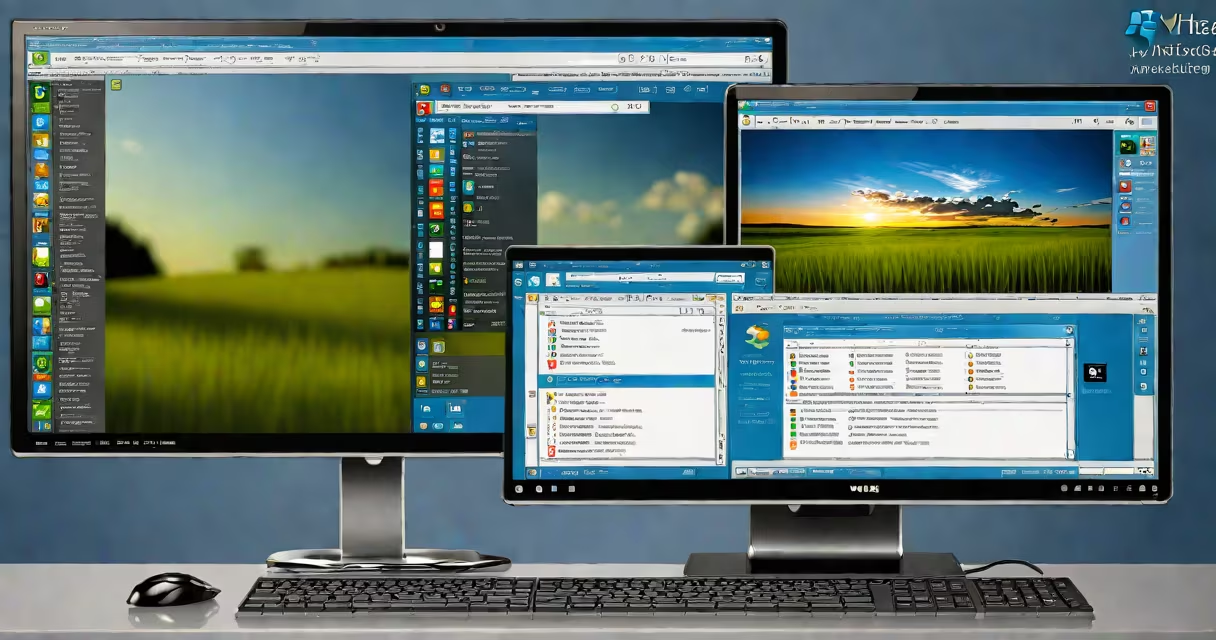
A virtual machine running Windows Vista is a software-based emulation of a physical computer that hosts the Windows Vista operating system. It runs within a host operating system using virtualization software such as VMware Workstation, Oracle VirtualBox, or Hyper-V. This allows users to install and operate Windows Vista on modern hardware without requiring dedicated physical machines.
Virtual machines isolate the guest OS-Windows Vista-from the host system. They allocate virtualized CPU, RAM, storage, and network resources, enabling the guest OS to function as if it were installed on actual hardware. This isolation prevents conflicts with the host system's configuration and allows multiple virtual machines to run simultaneously on a single physical device.
Windows Vista was released in 2007 and introduced features like the Aero interface, User Account Control (UAC), and improved security architecture. Running it in a virtual machine preserves access to these features for testing, development, or legacy application support, even though native hardware support ended years ago.
When you create a virtual machine for Windows Vista, the virtualization platform simulates a complete computer environment. The software allocates a portion of the host's memory (RAM), assigns a virtual hard disk (VHD or VMDK file), and provides virtualized input/output devices such as a keyboard, mouse, and graphics adapter.
The virtual machine boots from a Windows Vista installation ISO file. During setup, the guest OS installs drivers tailored to the virtual hardware-such as virtual network adapters and emulated graphics cards-rather than physical ones. Once installed, Windows Vista operates within the constraints of the allocated virtual resources.
For example, a standard Windows Vista Home Premium VM typically requires at least 1 GB of RAM, 15 GB of disk space, and a 64-bit capable processor with hardware virtualization enabled (Intel VT-x or AMD-V). Without hardware virtualization, performance degrades due to software-only emulation.
Several virtualization platforms support Windows Vista as a guest OS. The following table outlines common options and their compatibility:
| Platform | Supported Architecture | Minimum Host Requirements | Notes |
|---|---|---|---|
| VMware Workstation Pro | 32-bit and 64-bit | Host with VT-x/AMD-V, 4 GB RAM | Best for developers needing snapshot and cloning features. |
| Oracle VirtualBox | 32-bit and 64-bit | Host with VT-x/AMD-V, 2 GB RAM | Free and open-source; supports USB 2.0 passthrough. |
| Hyper-V (Windows 10/11) | 64-bit only | Host with SLAT, 4 GB RAM | Does not support 32-bit guests on newer versions. |
| Parallels Desktop (macOS) | 64-bit only | Apple Silicon or Intel Mac, 4 GB RAM | Requires macOS 12 or later; limited 32-bit support. |
Not all platforms support 32-bit Windows Vista installations. Hyper-V, for example, dropped 32-bit guest support in Windows 10 version 1903. Users attempting to install Windows Vista on a modern Hyper-V environment may encounter boot failures unless they use older hypervisor versions.
One non-obvious requirement: Windows Vista's kernel enforces driver signing policies. Without proper unsigned driver handling, critical components like display drivers or audio services fail to load. Enabling test signing mode via the command prompt is often necessary to bypass these restrictions during setup.
Running a virtual machine with Windows Vista serves several practical purposes. The most frequent applications include:
For example, a cybersecurity instructor at a community college uses a VirtualBox VM with Windows Vista SP2 to demonstrate how unpatched systems are compromised. The VM runs on a Linux host, isolated from the network, and captures packet traffic using Wireshark. This setup allows students to observe real-time exploitation without risking live systems.
Virtual machine Windows Vista is often mistaken for native installation or dual-boot setups. Unlike dual-booting, which requires rebooting to switch between operating systems, a VM runs Windows Vista concurrently with the host OS. You can switch between apps in both systems without restarting.
Another confusion arises with Windows Virtual PC-a deprecated tool from Microsoft designed for earlier versions of Windows. Windows Virtual PC only supports 32-bit guests and lacks advanced features like snapshots, changing disks, or smooth window integration. It cannot run Windows Vista effectively on modern systems due to missing driver support and lack of hardware acceleration.
Some users assume that running Windows Vista in a VM is equivalent to using a remote desktop session. That's incorrect. Remote Desktop Protocol (RDP) allows access to a remote machine, but it doesn't emulate a full system. A VM provides full control over the OS, including BIOS settings, boot order, and hardware configuration.
To set up a Windows Vista VM using Oracle VirtualBox:
This setup completes in under 15 minutes and results in a fully functional Windows Vista environment. The VM can then be used to test legacy software or analyze old system behaviors.
Understanding virtual machine Windows Vista clarifies how older operating systems remain accessible through modern tools. It's not just a nostalgic exercise-it's a functional solution for preserving software history, maintaining compliance, and supporting specialized workflows.