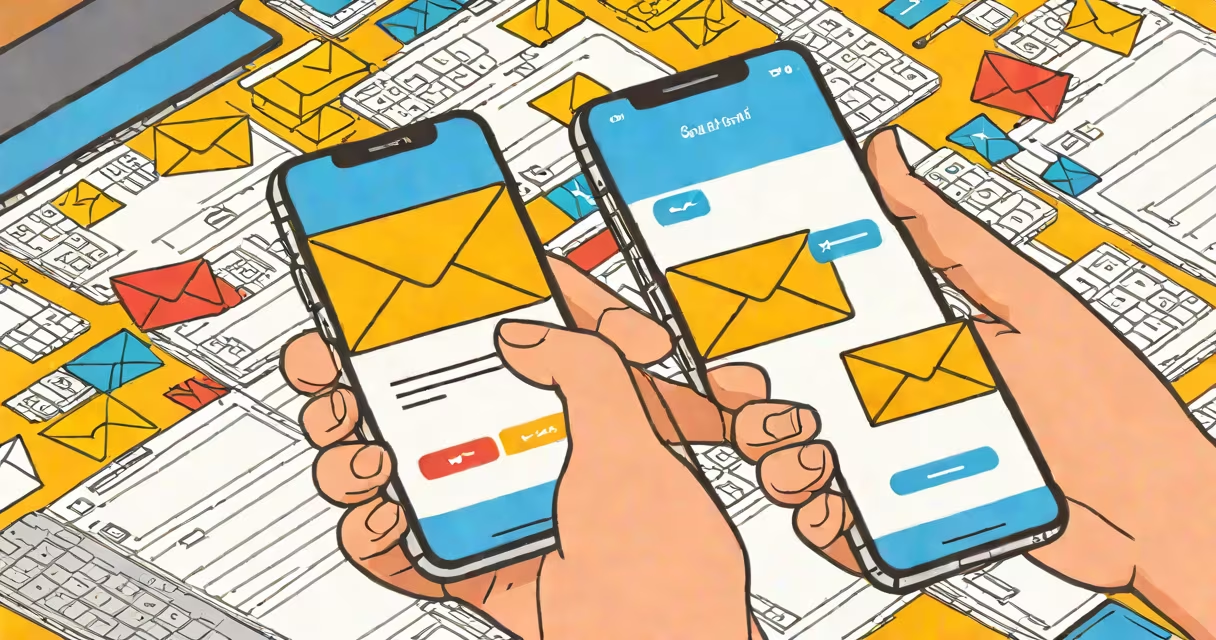
Adding a new email account means configuring a personal or work email address in an app or device so you can send and receive messages through that identity. This process varies by platform but typically involves entering your email address, password, and server settings or letting the system auto-detect them.
Most users add a new email to access their inbox from a phone, tablet, or desktop app. You may also set up multiple accounts under one interface-like using Gmail and Outlook together in Apple Mail. The core steps involve authentication, server configuration, and syncing preferences.
For most people, adding a new email requires only a few minutes and basic login details. Some services, like Yahoo or ProtonMail, offer automatic setup via their web portals. Others, such as custom domains, require manual entry of incoming and outgoing server addresses.
When you add a new email, the client software (e.g., iPhone Mail, Outlook desktop, Android Email) contacts the mail provider's servers using protocols like IMAP or POP3. IMAP keeps messages synchronized across devices; POP3 downloads them to one device only.
The client sends your credentials to the provider's authentication server. If correct, the server grants access and returns a list of folders-Inbox, Sent, Drafts-and the latest messages. The client then downloads headers and optionally full messages based on your sync settings.
Modern apps often use OAuth 2.0 instead of passwords. This token-based system lets apps access your mailbox without storing your password. Google and Microsoft both enforce OAuth for new account integrations, improving security and reducing risk of credential theft.
There are three main categories of email accounts: free public services, business or institutional emails, and custom domain emails. Each has different setup complexity and requirements.
| Type | Examples | Setup Method | Server Settings Required? |
|---|---|---|---|
| Free Public | Gmail, Yahoo Mail, Outlook.com | Auto-detect via email address and password | No |
| Business/Institutional | University.edu, Company.com | Manual setup with admin-provided info | Yes |
| Custom Domain | [email protected] | Manual entry of SMTP/IMAP details | Yes |
Free public services like Gmail and Outlook.com usually detect settings automatically. Enter your full email and password, and the app connects within seconds. These services use standardized configurations known to the client software.
Business or school emails often require manual setup. Your IT department provides the incoming (IMAP) and outgoing (SMTP) server addresses, port numbers, and encryption type (usually TLS). For example, a university might assign:
Custom domain emails follow the same pattern. If you own yourdomain.com and use a hosting service like Bluehost or GoDaddy, you'll find server details in your control panel. Without correct settings, messages fail to send or receive.
People add new email accounts to manage personal communication, organize work tasks, or maintain professional presence. A freelancer might use one email for clients and another for personal notes. A student adds a university email to access course materials and announcements.
Mobile devices rely heavily on multi-account support. On an iPhone, you can switch between Gmail, iCloud, and Hotmail with a single tap. Android allows similar flexibility. Apps like Spark or Outlook for iOS provide unified views across accounts, reducing clutter.
A common mistake is assuming all email providers support the same setup flow. For example, setting up a Yahoo account on Android requires selecting "Other" during setup because Yahoo doesn't appear in the default list. Skipping this step leads to failed connections.
Many assume that adding a new email means creating a new address. That's incorrect. Adding an email refers to linking an existing account to a device or app. Creating a new address is a separate action-often done through a signup form on Gmail or Outlook.com.
Another error is confusing "add email" with "set up forwarding." Forwarding routes incoming messages from one account to another. It doesn't make the original account visible in your mail client. You still need to add the source account separately.
Some users try to add a Gmail account using POP3 instead of IMAP. This causes issues: messages disappear from the web inbox after download, and folders don't sync properly. Always choose IMAP unless instructed otherwise.
One non-obvious detail: some email providers block access from third-party apps unless you enable "Less secure app access" or generate an app-specific password. Google requires this for older apps that don't support OAuth. Disabling it enhances security but breaks legacy setups.
I recently helped a friend set up her mother's new Gmail account on an old Samsung Galaxy S7. She had tried twice before but failed due to incorrect settings.
We opened the Email app, tapped "Add Account," selected "Gmail," entered the full email address, and pressed "Next." The app prompted for the password. After entering it, the system verified the account and began syncing.
Within 45 seconds, the inbox loaded. We checked the "Sent" folder and confirmed a test message sent successfully. No server settings were needed-Gmail's auto-detection worked flawlessly.
This mirrors the standard flow for most popular services. However, when we later added a custom domain email for her small business, we had to manually enter:
After saving, the app connected after 10 seconds. The difference in effort highlights why free services are easier to use than custom domains.
If you're setting up a new email on Windows or macOS, the process is similar. Use the Mail app and select "Add Account" from the File menu. Enter your address and password. The system will attempt to auto-configure.
Understanding how to add new email ensures you stay connected across devices. Whether managing personal messages or handling work correspondence, proper setup prevents missed communications and improves workflow efficiency.